I changed my website's code but it's not updating: how to find out why
You saved, built and deployed, and the page still looks the same. Test each layer in order, from your editor to your browser's cache, to find the stale copy, starting with a hard refresh.
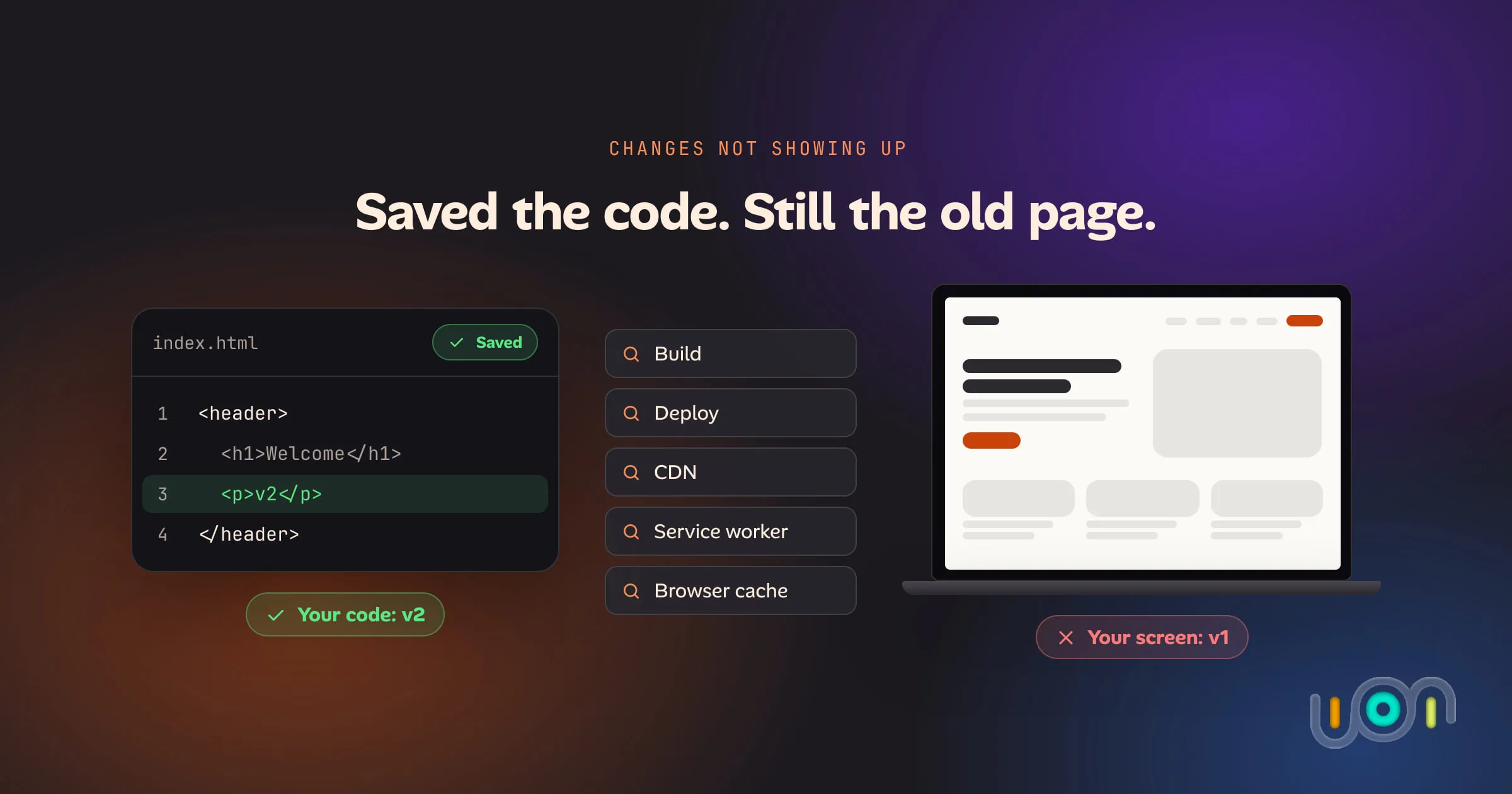
You changed the code. You saved it, maybe built and deployed it too. You reload the page and it looks exactly the same.
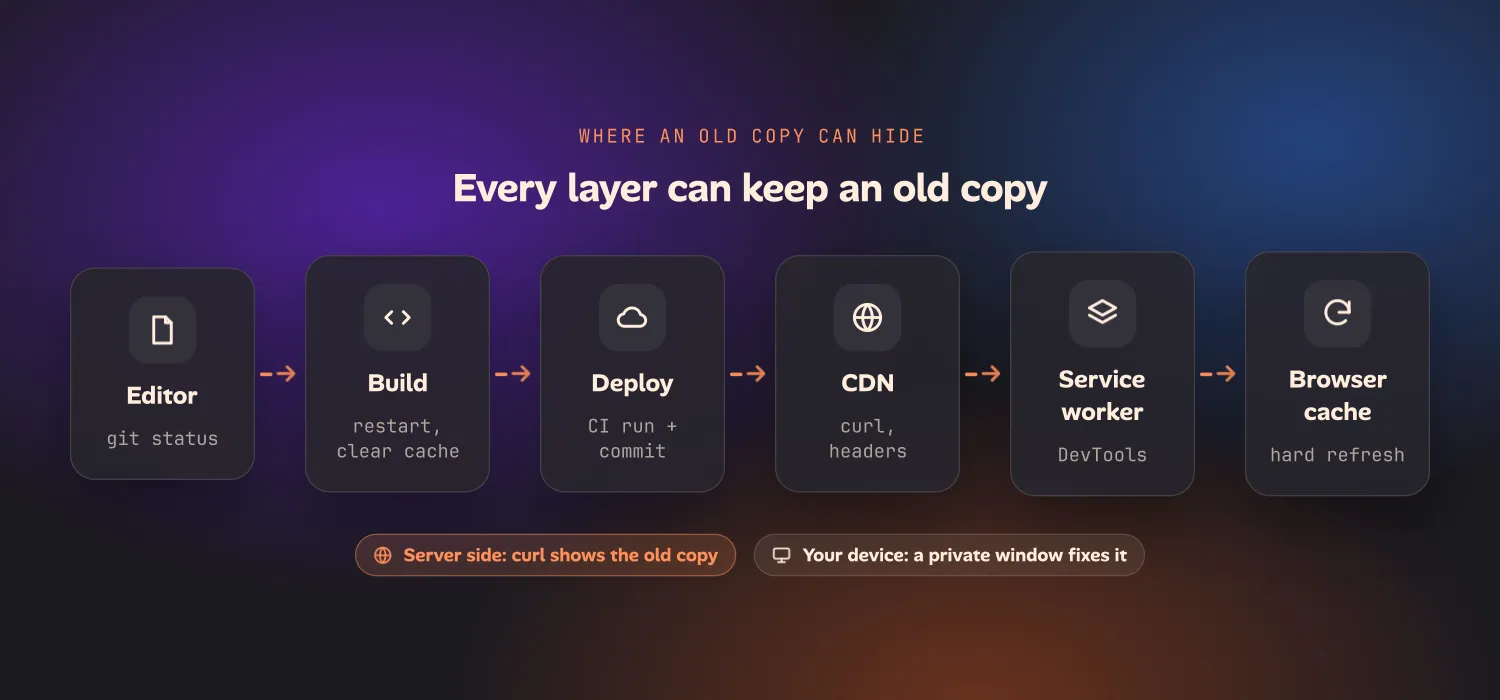
Either the change never made it out, or it did and something between the server and your screen is still handing you an old copy. There are only a few places that copy can be: your build, your deploy, a CDN, a service worker or your browser’s cache. Guessing takes a long time. Checking them in order is quick.
This guide goes from the cheapest check to the most involved one. Stop at the first one that shows your change.
The short answer
- Make the change easy to spot. Put an obvious marker in the page, like a version number or a word in the title.
- Hard refresh. ⌘⇧R on a Mac, Ctrl+Shift+R or Ctrl+F5 on Windows and Linux. A phone has no shortcut for this. See how to hard refresh on iPhone, iPad and Android.
- Open a private window. It starts with no cache, no cookies and no service worker.
- Ask the server directly with
curl. Ifcurlshows the old version too, the problem isn’t your browser. - Check what served the page in DevTools’ Network panel: the disk cache, a service worker or a CDN.
- Purge the CDN, remove the service worker or fix the build. Which one depends on what steps 3 to 5 told you.
| What you see | Where the old copy is |
|---|---|
| A hard refresh or private window shows the change | Your browser’s cache |
| A hard refresh shows it, but the next normal reload is old again | A service worker |
| A private window shows it, a hard refresh doesn’t | Something in your session: cookies, an extension or a service worker |
curl shows the old version |
The server or the CDN, not your device |
curl with a made-up query string shows the change, plain curl doesn’t |
The CDN |
| Nothing shows it, not even the server’s files | The build or the deploy |
Step 1: Make the change impossible to miss
A lot of “it’s not updating” turns out to be “it updated, I just couldn’t tell.” A one-pixel padding change or a slightly different shade of blue is easy to miss, especially on a phone.
Before you test anything, add something you can’t mistake: change the page’s
<title>, add a visible v2 to the footer, or print the build’s commit hash
somewhere on the page. Now every check below has a clear yes or no.
While you’re at it, confirm the boring things, because they’re the most common cause:
- The file is saved, and it’s the file the page actually uses. Search the project for the text you changed. There might be two copies.
- You’re on the right branch. Run
git statusand check the change is there. - You’re looking at the right URL.
localhost, a preview deploy, staging and production are four different sites. Check the address bar before anything else. - The dev server is running from this folder. If two are running, the one on the port you opened may belong to another checkout.
Step 2: Hard refresh
A normal reload lets the browser reuse the files it already has, as long as the server’s cache headers say they’re still fresh. A hard refresh tells it to fetch the page and everything on it again.
| Browser | Shortcut |
|---|---|
| Chrome, Edge | ⌘⇧R, or Ctrl+Shift+R or Ctrl+F5 |
| Firefox | ⌘⇧R, or Ctrl+Shift+R or Ctrl+F5 |
| Safari on macOS | ⌥⌘R (Reload Page From Origin) |
With DevTools open in Chrome or Edge, you can also right-click the reload button and choose Empty Cache and Hard Reload, which clears that site’s cache first.
On a phone there is no hard refresh in any mainstream browser, only workarounds, and most of them cost you something. They’re all covered in how to hard refresh on iPhone, iPad and Android, and hard refresh on desktop vs mobile compares what each browser supports on each platform.
If the hard refresh shows your change, you’re done: it was your browser’s cache. If not, keep going. A hard refresh can’t get past a CDN, and it only skips a service worker for that one load: the next normal reload goes back through it.
Step 3: Open a private window
A private or incognito window starts with an empty cache and no service worker, so it’s a cleaner test than a hard refresh. It also leaves your normal session alone.
- Shows the change: the old copy is tied to your normal session. Look at what the private window doesn’t have: cookies (a logged-in page can be cached or built differently), extensions, or a service worker (step 5).
- Doesn’t show the change: your device isn’t the problem. Go to step 4.
In Chrome, all incognito windows share one session, so close any that are already open first. If the page is behind a login, you’ll have to log in again inside the private window.
Step 4: Ask the server directly with curl
Your browser has caches, extensions and service workers in the way. curl
doesn’t. It asks the server for the page and prints exactly what comes back.
# Is the change in the HTML the server sends?
curl -s https://example.com/ | grep "v2"

# What do the cache headers say?
curl -sI https://example.com/
If grep finds your marker, the server has the new version, and the old copy is
in your browser. Go back to step 3 or 5.
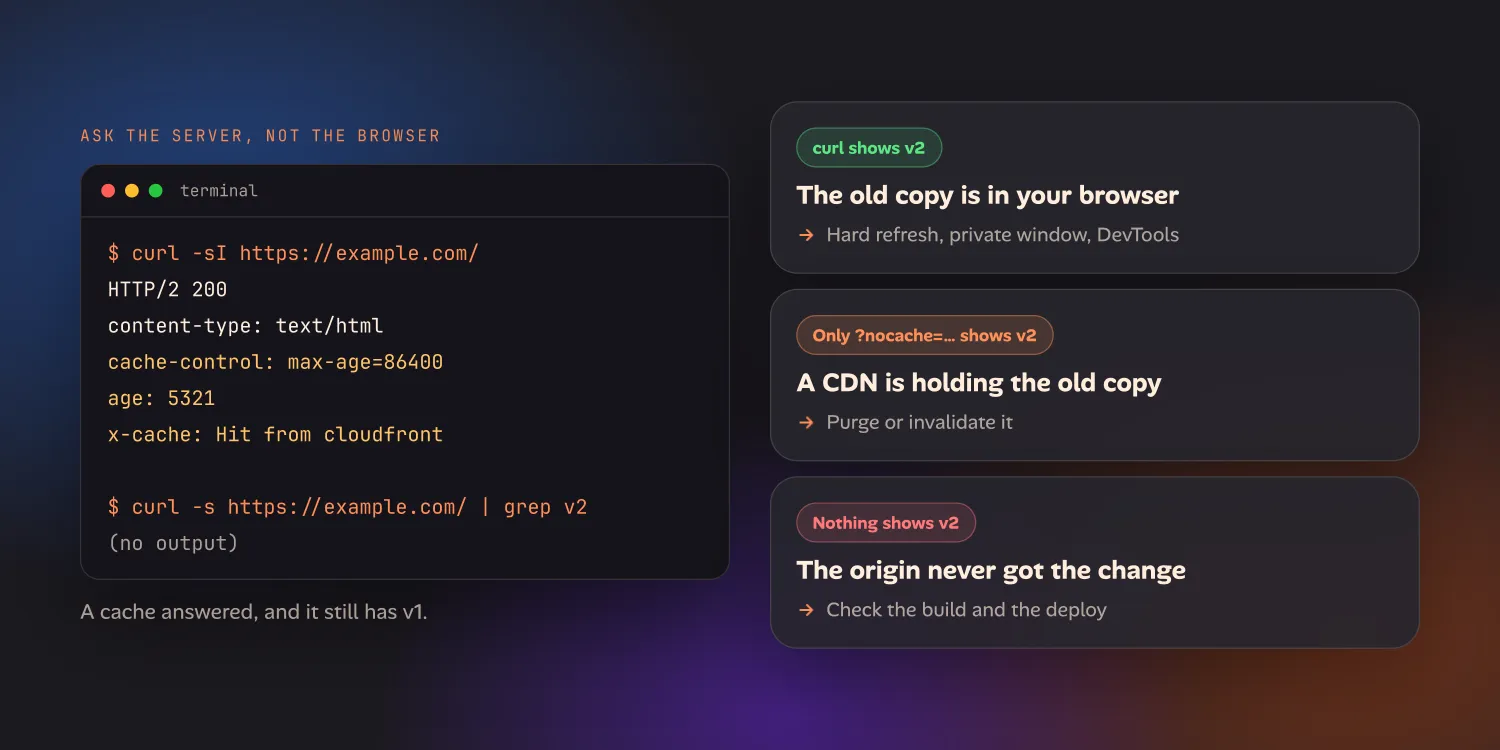
If it doesn’t, the old copy is on the server side. Now find out whether it’s the CDN or the origin, by adding a query string the CDN has never seen:
curl -s "https://example.com/?nocache=$(date +%s)" | grep "v2"Cloudflare, by default, caches each query string as a separate URL, so a new one makes it fetch a fresh copy from your server.
- The marker shows up now: the CDN is holding the old copy. Purge it (step 6).
- Still not there: most likely the origin is serving the old version, because the deploy didn’t go out or went somewhere else (step 7). Check the headers first, though: some CDNs, including CloudFront with its default cache policy, ignore the query string, so this test can’t rule them out.
The headers from curl -sI tell you whether a cache answered:
| Header | What it means |
|---|---|
age: 5321 |
A cache has held this response for 5,321 seconds |
cf-cache-status: HIT |
Served from Cloudflare’s cache |
x-cache: Hit from cloudfront |
Served from Amazon CloudFront’s cache |
x-vercel-cache: HIT |
Served from Vercel’s cache |
cache-control: max-age=86400 |
Browsers and caches may reuse this for a day without asking |
Step 5: See what served the page in DevTools
If the server has the new version and your browser still shows the old one, open DevTools (⌥⌘I on a Mac, F12 or Ctrl+Shift+I on Windows and Linux) and go to the Network panel.
- Tick Disable cache. It only applies while DevTools is open, which is what you want.
- Reload.
- Look at the Size or Transferred column for the page and the file you changed.
What it says tells you where the file came from:
- A byte count: downloaded from the network just now.
- (memory cache) or (disk cache): reused from the browser’s cache. With Disable cache ticked you shouldn’t see these.
- (ServiceWorker): served by a service worker, which keeps its own cache. Disable cache doesn’t bypass it, and a hard refresh only skips it for one load.
- 304: the browser asked, and the server said its copy was still current. If
the file really did change, the server’s
ETagorLast-Modifieddidn’t, so look at the deploy.
If a service worker is involved, go to Application → Service workers in
Chrome or Edge. Tick Update on reload or Bypass for network while you work, or
click Unregister.
Application → Storage → Clear site data removes the worker, its caches and the
site’s cookies in one go. That logs you out of the site, so only do it once you
know it’s needed. In Firefox, about:serviceworkers lists them with an
Unregister button.
Service workers are behind a lot of “it updates for me but not for my users.” Some frameworks and PWA plugins add one without it being obvious. If your site has one, make sure new versions activate, instead of waiting for every tab to close.
Step 6: Purge the CDN
If step 4 pointed at the CDN, clear its copy:
- Cloudflare: Caching → Configuration → Purge Cache, either everything or specific URLs.
- Amazon CloudFront: create an invalidation for the changed paths, or
/*. For example:aws cloudfront create-invalidation --distribution-id <id> --paths "/*". - Vercel and Netlify: a new deploy normally replaces the cached pages automatically. If it doesn’t, check you’re on the production URL rather than an older preview deploy.
Invalidations take a moment to spread to every edge location. Run the curl
check again after a minute or two.
Step 7: Check the build and the deploy
If the origin itself is serving old files, the change never got there. Check:
- Did the deploy run, and did it pass? Look at the latest run in your CI or hosting dashboard, and check its commit matches the one with your change. A failed build often leaves the previous version live, with no sign on the site.
- Did it deploy the right branch? Pushing to
devwhen the host builds frommainis a common way to lose an afternoon. - Is the dev server serving a stale build? Hot reload sometimes misses a
change, especially to config files, environment variables or new files. Stop
the server, delete the framework’s build cache (for example
.nextfor Next.js, ornode_modules/.vitefor Vite), and start it again. - Are environment variables baked in at build time? In most front-end frameworks, changing a public variable in the dashboard does nothing until you build again.
- Does the domain point where you think? After a move to a new host, run
dig +short example.comand check the answer is the new host, not the old one.
When it’s only your phone showing the old version
Phones add two complications. There’s no hard refresh to try first, and the old copy can live somewhere clearing the browser doesn’t reach:
- A home-screen web app keeps its own storage on iOS, separate from Safari’s. Clearing Safari’s data may not change what the home-screen icon shows.
- Clearing site data logs you out, which makes testing anything behind a login slow.
A private tab on the phone is still the fastest test. If you need to keep your login, how to hard refresh on iPhone, iPad and Android goes through the least destructive option in every mobile browser.
Stop it happening again
If you run the site, a few settings make this problem mostly go away, for you and for everyone who visits:
- Serve HTML with
Cache-Control: no-cache. The browser still keeps a copy, but asks the server before each use, so a new deploy shows up on the next reload. - Give CSS, JavaScript and images content-hashed names, and cache those for a long time. A new build produces new URLs, so nothing old gets reused.
- Invalidate the CDN as part of every deploy, for the paths that changed.
- Put the build’s version or commit hash in the page, in a footer or an HTML comment. “Which version am I looking at?” then takes one glance.
On a laptop, most of this checking takes a minute: a shortcut, a private window,
one curl. On a phone it’s slower, because the shortcut doesn’t exist and the
workarounds log you out. That gap is why we’re building ion, an iPhone and iPad
app for testing your own projects from your phone, with a reload that skips the
cache and keeps your login. The app is in early access; see
ion for developers if you test on your phone a lot.