How to hard refresh on iPhone, iPad and Android (every browser)
Mobile browsers have no hard refresh. Here is the least destructive way to get a fresh copy of a page in Safari, Chrome, Firefox, Edge and Samsung Internet on iPhone, iPad and Android, and what each option costs you.
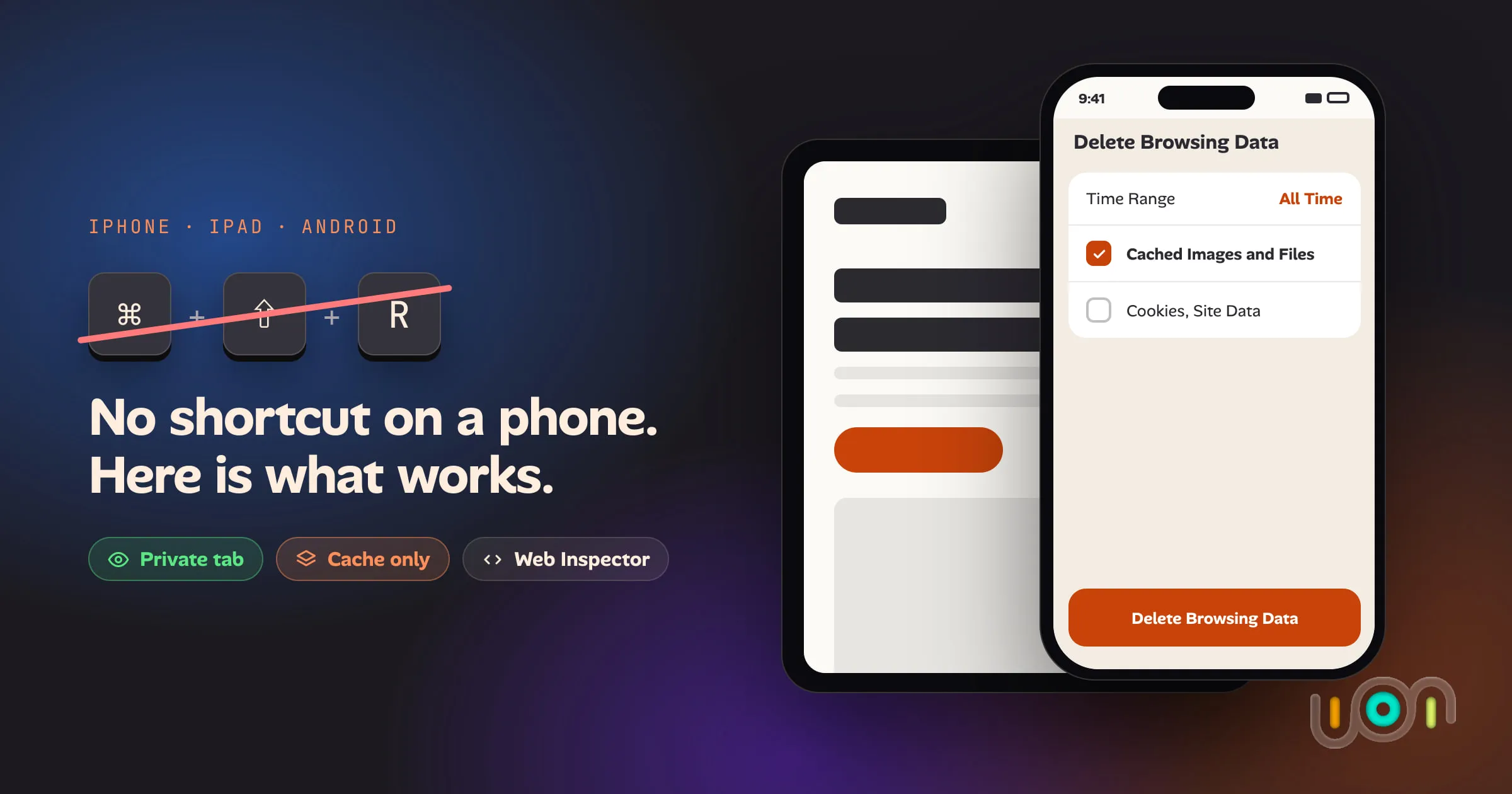
On a laptop, a hard refresh is one shortcut: ⌘⇧R on a Mac, Ctrl+Shift+R or Ctrl+F5 on Windows and Linux. You deploy a fix, press it, and the page comes back without the old cached files.
On a phone there is no such shortcut, and no button either. No mainstream mobile browser (Safari, Chrome, Firefox, Edge or Samsung Internet) has a reload that skips the cache. The long-press menu on Safari’s Reload button looks like it should have one, and it doesn’t.
So the real question is which workaround costs you the least. Below is each browser in turn, starting with the cheapest option.
The short answer
| Browser | Fresh copy, logins kept | Fresh copy of one site only |
|---|---|---|
| Safari (iPhone, iPad) | Private tab, or Web Inspector from a Mac | Settings → Apps → Safari → Advanced → Website Data (logs you out of that site) |
| Chrome (iPhone, iPad) | Delete browsing data, Cached images and files only (every site) | No per-site option |
| Chrome (Android) | Delete browsing data, Cached images and files only (every site) | Page info → Cookies and site data → Delete (logs you out of that site) |
| Firefox (Android) | Delete browsing data, Cached images and files only (every site) | Padlock → Clear cookies and site data (logs you out of that site) |
| Firefox (iPhone, iPad) | Data Management, Cache only (every site) | Data Management → Website Data |
| Edge, Samsung Internet | Clear browsing data, cache only (every site) | Varies by version |
If you’re just checking whether a deploy went out, a private tab is almost always the right answer: it starts with an empty cache, and your normal session is left alone.
What a hard refresh actually does
It’s worth being precise here, because it decides which workaround you need.
A normal reload lets the browser reuse files it already has, as long as the server’s cache headers say they’re still fresh. A hard refresh tells the browser to ignore its HTTP cache and fetch the page and everything on it again. It doesn’t clear cookies, which is why you stay logged in on desktop.
Two things a desktop hard refresh doesn’t reliably get past, on any device:
- A service worker that serves the page from its own cache. Unregister it, or clear the site’s data, which removes it.
- A CDN or proxy that is still holding the old version. That’s a server-side cache, and nothing you do in the browser will change what it sends.
Keep both in mind if a workaround below doesn’t seem to work, and if none of them does, check each layer in order, from your build to the CDN, to find where the old copy is.
Safari on iPhone
Safari on iOS has no hard reload. Long-pressing Reload offers Request Desktop Website and, if you have a content blocker installed, Reload Without Content Blockers. Neither skips the cache. Pulling down to refresh is a normal reload.
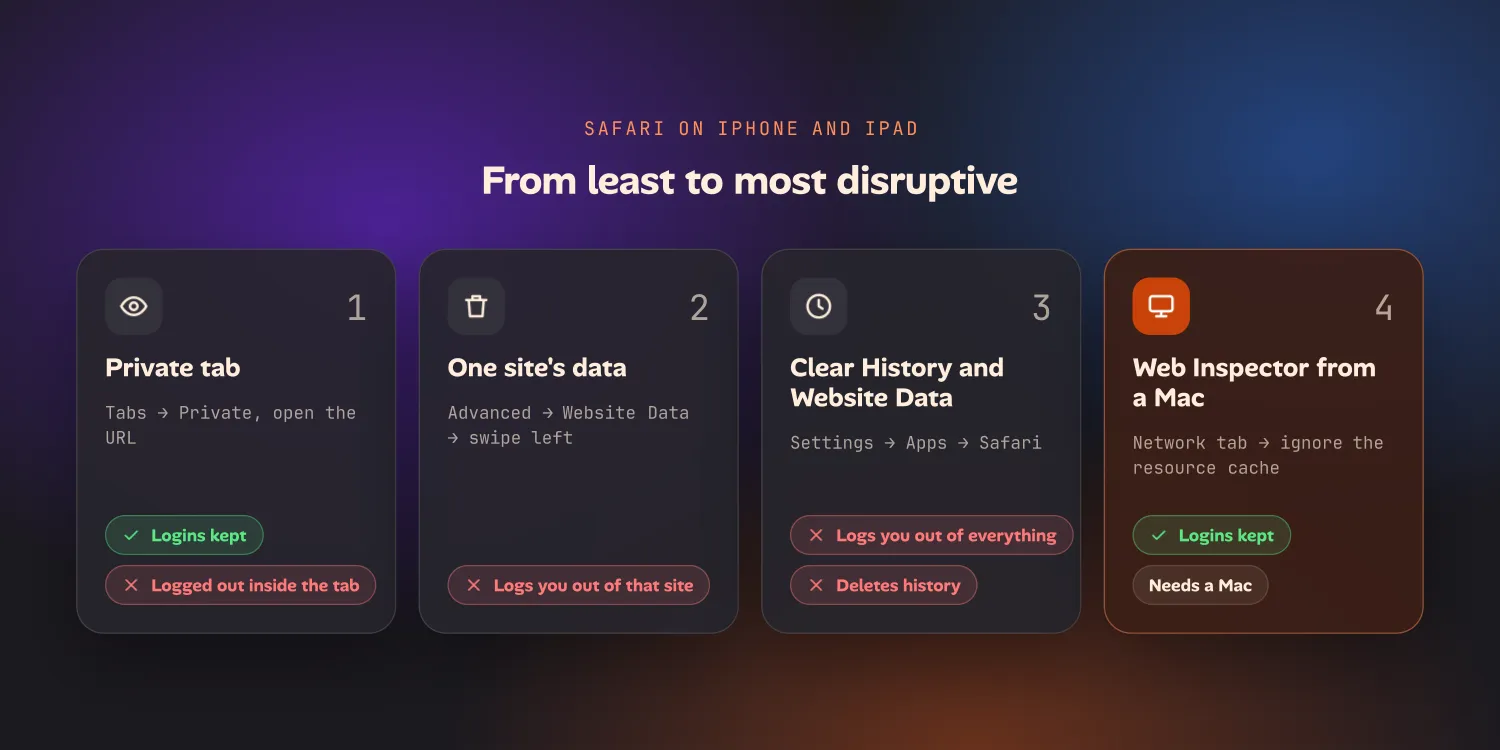
From least to most disruptive, your options are:
1. Open a private tab. Tap the Tabs button, switch to Private, and open the URL. Safari gives private tabs their own separate storage, so the page loads with no cache, no cookies and no service worker. Your logins in normal tabs are untouched. The catch is that you’re logged out inside the private tab, so this won’t help if the page you’re testing sits behind a login.
2. Remove one site’s data. Go to Settings → Apps → Safari → Advanced → Website Data, search for the domain, and swipe left on it to delete. This clears that site’s cache, cookies, storage and service worker, so you’ll be logged out of that site, but no other site.
3. Clear history and website data. Settings → Apps → Safari → Clear History and Website Data lets you choose a timeframe. It’s the blunt option: it logs you out of everything in that window and deletes your history too.
4. Use Web Inspector from a Mac. This is the only way to get a true “ignore the cache” reload on an iPhone:
- On the iPhone, turn on Settings → Apps → Safari → Advanced → Web Inspector.
- On the Mac, open Safari → Settings → Advanced and turn on Show features for web developers.
- Connect the phone with a cable (or pair it over the network), then pick the phone and the page from Safari’s Develop menu.
- In Web Inspector’s Network tab, turn on the option that ignores the resource cache, then reload the page.
It keeps your logins and it’s exact, but it needs a Mac nearby. The same connection is also how you change the user agent on an iPhone to anything you like.
Safari on iPad
Everything above applies to the iPad. The settings paths are the same.
A hardware keyboard doesn’t change that. ⌘R reloads the page, but I haven’t found a reload-from-origin shortcut like the Mac’s ⌥⌘R. Hold ⌘ in Safari to see the shortcuts your version supports. Web Inspector works with an iPad in the same way it does with an iPhone.
Chrome on iPhone and iPad
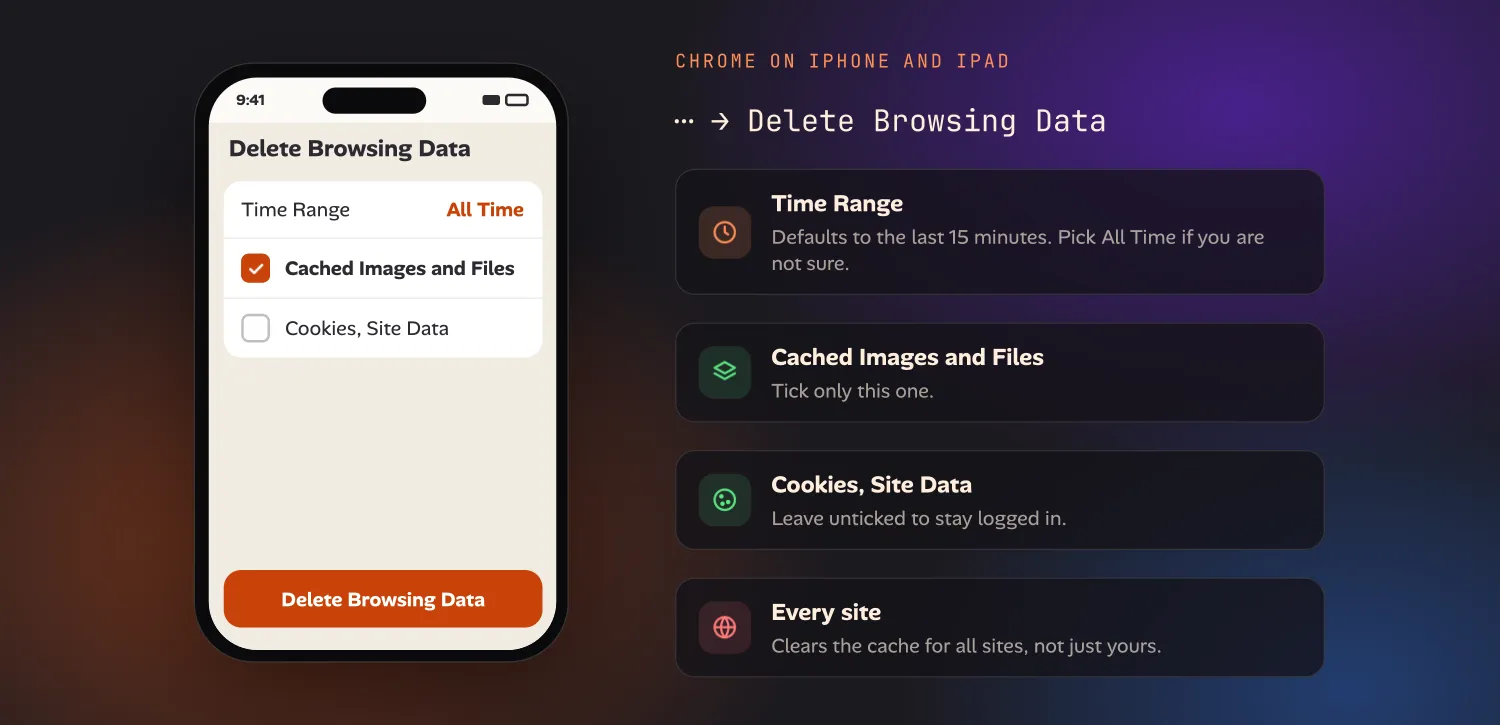
Chrome on iOS has no hard reload either, and no per-site delete. What it does have is a way to clear only the cache, which keeps you logged in:
- Tap ⋯ → Delete Browsing Data.
- Set Time Range. It defaults to the last 15 minutes, which won’t reach files cached earlier than that. Pick a range that covers when you first opened the site, or All Time if you’re not sure.
- Tick Cached Images and Files only. Untick Cookies, Site Data if you want to stay logged in.
- Tap Delete Browsing Data.
This clears the cache for every site, not just yours. The alternative is an Incognito tab, which starts empty but shares storage with your other Incognito tabs, so close all of them first.
Chrome on Android
Android Chrome gives you two useful routes and one for developers.
Clear only the cache, for every site. Tap ⋮ → Delete browsing data → More options. Choose a time range, tick only Cached images and files, and confirm. You stay logged in.
Clear one site. On the page, tap the Page info icon at the left of the address bar → Cookies and site data → Delete. This removes that site’s cookies and stored data, including a service worker, which is often what’s actually serving the old version. You’ll be logged out of that site.
Use remote DevTools. Turn on USB debugging on the phone, connect it to a
computer, open chrome://inspect in desktop Chrome and inspect the page. Tick
Disable cache in the Network panel, then reload. As with Web Inspector, it’s
exact and keeps your logins, but it needs a computer and a cable.
Firefox on Android
- Tap ⋮ → Settings → Delete browsing data.
- Tick Cached images and files, and leave Cookies and site data unticked if you want to stay logged in.
- Tap Delete browsing data.
For a single site, tap the padlock in the address bar and choose Clear cookies and site data. A private tab also starts with an empty cache.
Firefox on iPhone and iPad
Open the menu → Settings → Data Management. Turn on Cache only and tap Clear Private Data to clear the cache for every site while keeping your cookies. Website Data, on the same screen, lets you remove a single site’s data instead. Like every browser on iOS, Firefox has no hard reload of its own.
Samsung Internet and Edge
Neither has a hard reload on mobile. Both let you clear only the cache:
- Samsung Internet: Menu (≡) → Settings → Personal browsing data (called Privacy or Browsing data in some versions) → Delete browsing data. Tick Cached images and files, then delete.
- Edge: ⋯ → Settings → Privacy and security → Clear browsing data. Tick Cached images and files, choose a time range, then clear.
Both clear the cache for every site. For one site, a private tab is the simplest route.
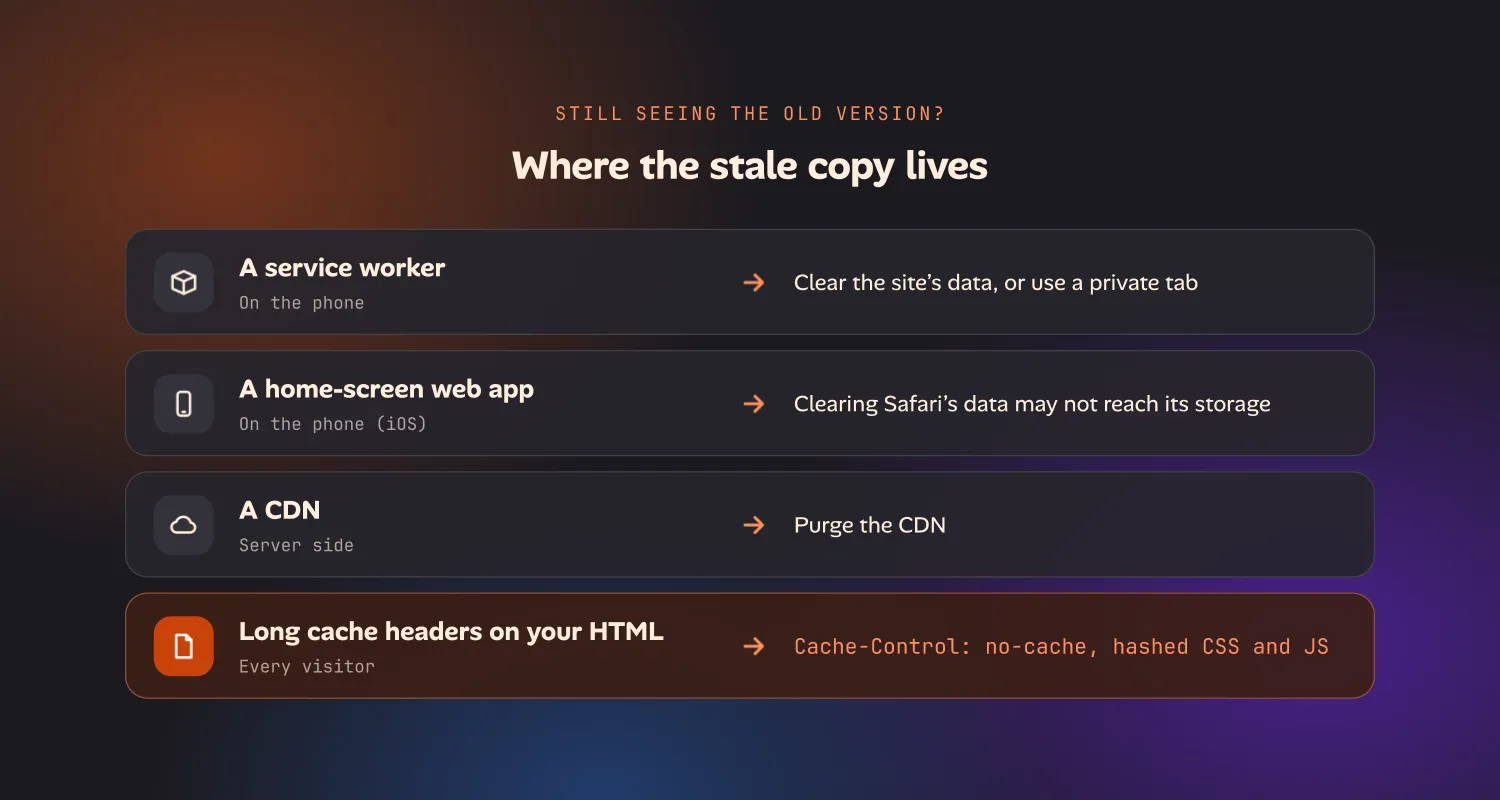
Why is my phone still showing the old version of my site?
If you’ve cleared the cache and the old version is still there, one of these is usually the reason:
- A service worker. Clearing only the cache doesn’t remove it. Clear the site’s data, or use a private tab.
- A home-screen web app. An app you added to the home screen keeps its own storage on iOS, separate from Safari’s. Clearing Safari’s data may not reach it.
- A CDN. If a private tab on a different network also shows the old version, the stale copy is on the server side, not on your phone. Purge the CDN.
- Long cache headers on your HTML. If the HTML is cached for hours, every
visitor sees the old version, not just you. Serve HTML with
Cache-Control: no-cache, and give CSS and JavaScript content-hashed file names so a new deploy produces new URLs.
The last point is the real fix if you run the site. A page that’s built so it never needs a hard refresh is better than knowing six ways to force one.
Where desktop does this well, and phones don’t
Desktop browsers handle this well: one shortcut, and with DevTools open, Empty cache and hard reload in Chrome and Edge. The desktop vs mobile comparison lists every browser’s shortcut side by side. Phones make you choose between clearing too much, logging yourself out, or finding a computer and a cable.
That gap is one we’re closing in ion, the iPhone and iPad app we’re building to test your own projects from your phone. Long-pressing Reload does a reload that skips the cache, and your login stays put. The app is in early access; see ion for developers if that’s the problem you keep running into.