Hard refresh on desktop vs mobile: what every browser supports
A hard refresh is a keyboard shortcut on every desktop browser and a missing feature on every mobile one. Here is exactly what each browser supports, on which platform, and what the mobile workarounds actually cost you.
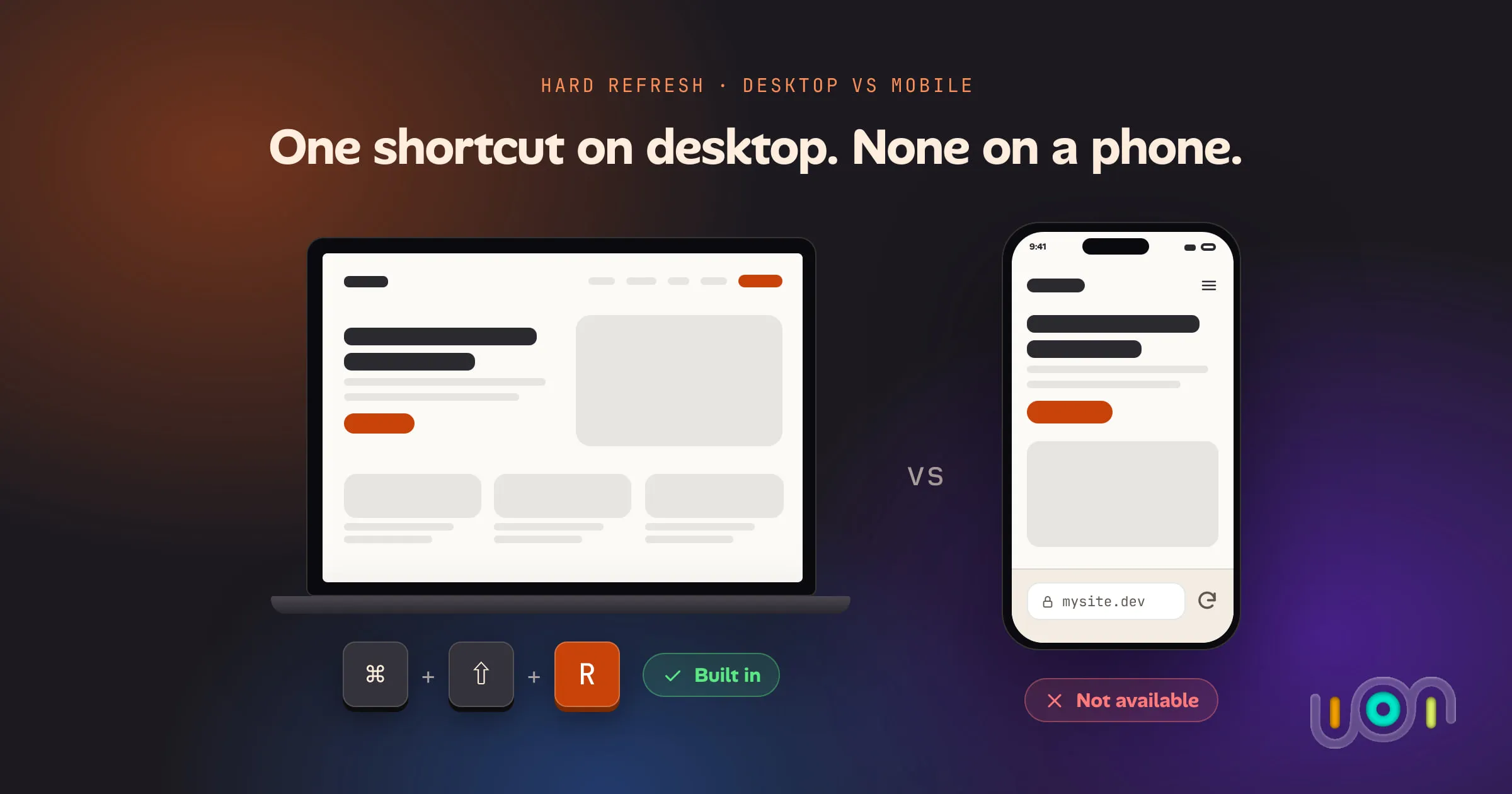
Every desktop browser has a hard refresh: reload the page while skipping the cache entirely, so you see the version actually sitting on the server instead of whatever your browser cached last time. It is one keyboard shortcut, and every developer who has ever chased a “why is my CSS not updating” bug knows it by muscle memory.
Move to a phone and the feature disappears. Not “harder to find” — gone. Safari on iOS and Chrome on Android ship no hard-refresh gesture at all. This is a straight comparison of what each browser actually supports, by platform, and what you have to do instead when it doesn’t.
What “hard refresh” means
A normal reload asks the server “has this changed?” and the server can say
“no, use what you already have” — a 304 Not Modified, served from cache. A
hard refresh skips that conversation. It tells the browser to ignore its
cache entirely and re-fetch every resource on the page from origin.
That distinction matters most while you’re actively changing something: a deployed CSS fix, a new build hash, an API response you just fixed. A normal reload can keep showing you the stale version for reasons that have nothing to do with whether your fix worked. (If a hard refresh doesn’t clear it either, work through where else the old copy can be: the build, the deploy, a CDN or a service worker.)
Desktop: a keyboard shortcut, everywhere
| Browser | Platform | How | Catch |
|---|---|---|---|
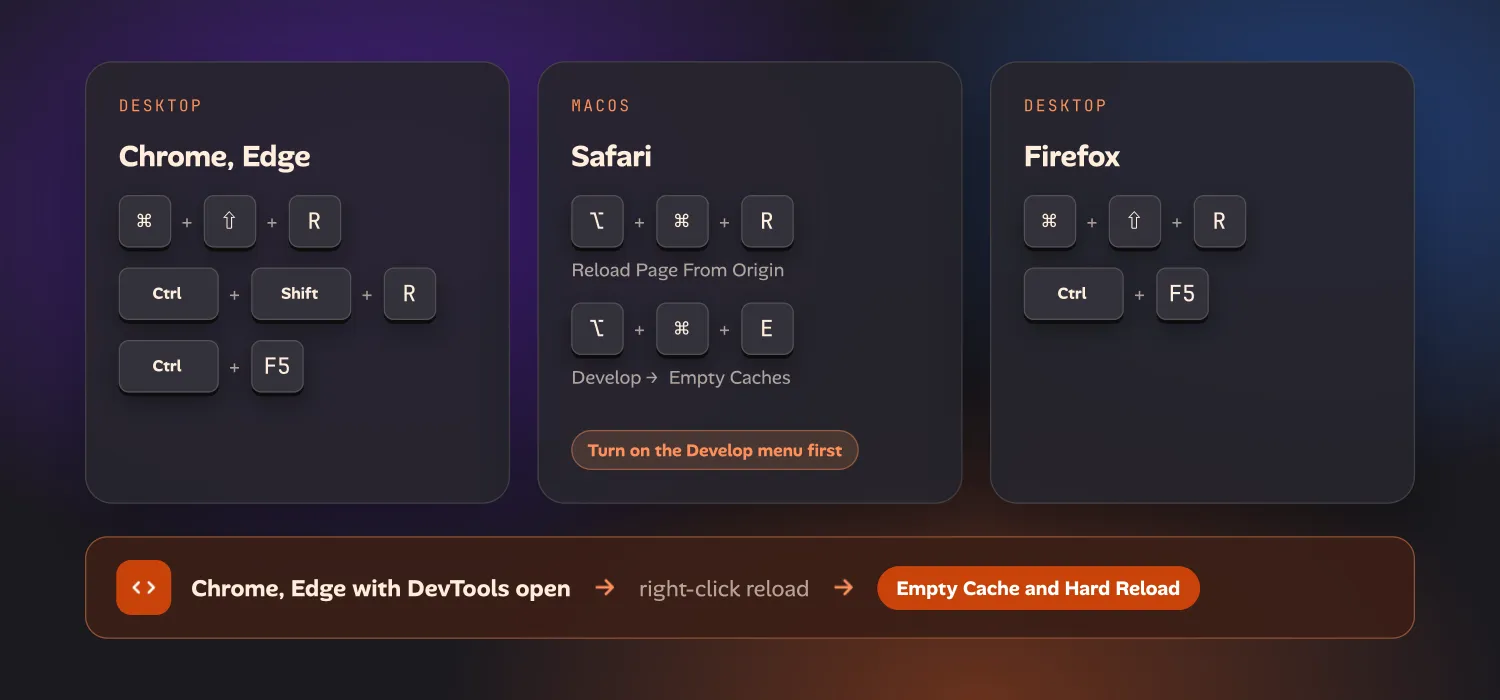
| Chrome, Edge | Desktop | ⌘⇧R or Ctrl+Shift+R (also Ctrl+F5) | Desktop only |
| Safari | macOS | ⌥⌘R (Reload Page From Origin), or Develop → Empty Caches (⌥⌘E) | The Develop menu has to be turned on first, in Settings → Advanced |
| Firefox | Desktop | ⌘⇧R or Ctrl+F5 | — |
There’s a second tier on Chrome and Edge, for when a page’s own service worker is the thing serving stale content: open DevTools, right-click the reload button, and pick Empty Cache and Hard Reload. That clears more than the shortcut does, and it only exists with DevTools open — which is itself a desktop-only constraint.
Every one of these needs a physical keyboard, and none of it has a mobile equivalent, because a hard refresh isn’t a menu item hiding somewhere on mobile. It was never built.
Mobile: no hard refresh, on any of them
| Browser | Platform | How | Catch |
|---|---|---|---|
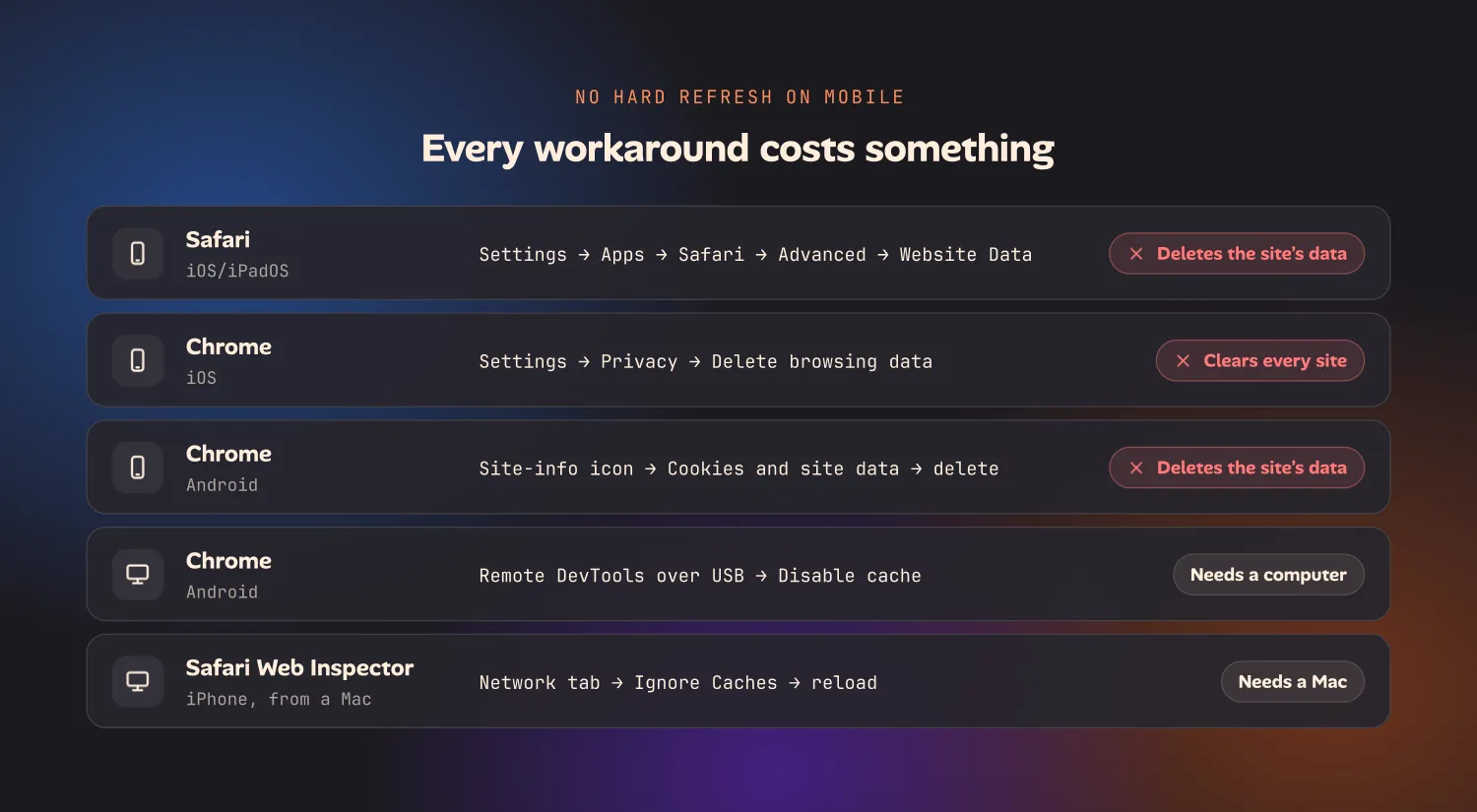
| Safari | iOS/iPadOS | Not available. Long-pressing Reload only offers Request Desktop Website and Reload Without Content Blockers | Workaround: Settings → Apps → Safari → Advanced → Website Data → delete the site, or open a Private tab |
| Chrome | iOS | Not available | Workaround: Settings → Privacy → Delete browsing data — which clears every site, not just the one you’re testing |
| Chrome | Android | Not available | Workaround: tap the site-info icon → Cookies and site data → delete, or attach remote DevTools over USB and tick Disable cache |
| Safari Web Inspector | iPhone, from a Mac | Ignore Caches in the Network tab, then reload from the phone | Needs a Mac, a cable or Wi-Fi pairing, and the Develop menu enabled on both ends |
(Menus and settings paths above are accurate as of September 2026 — worth a quick check against the current OS if you’re reading this much later; these things move between major versions.)
Notice what the “catch” column actually says. Every mobile workaround either deletes the site’s stored data — which signs you out — or requires a second device. There is no phone-native equivalent of pressing ⌘⇧R. The closest thing, attaching Safari Web Inspector from a Mac, is a desktop workaround wearing a mobile costume: it still needs the Mac.
Why the gap exists
This isn’t an oversight anyone is likely to fix. Hard refresh is a developer tool, and both iOS Safari and Android Chrome trim developer-facing UI hard on mobile, where the reload button is one tap among a handful and there’s no room for a long-press menu of cache options. The alternative — clearing site data — was designed for “I don’t trust this site anymore,” not “I just deployed and want to see it.” It happens to also do the second thing, badly, by doing something much bigger than you asked for.
If you’re testing your own site from your phone, that gap is the entire problem: you make a change, you want to see it, and the only tool the platform gives you also logs you out of the thing you’re testing.
Where this leaves you
If you’re on a laptop, hard refresh has been solved for over a decade and none of the above changes anything for you. Keep using the shortcut.
If you’re testing on a phone, today’s honest answer is: no hard refresh exists, and every workaround costs you something — your session, a second device, or both. The step-by-step guide for iPhone, iPad and Android ranks them by what they cost. That gap is exactly what led us to build a long-press reload in ion, our in-progress browser and workspace for testing sites and apps from a phone, that skips the cache without touching the site’s stored data. The app hasn’t launched yet, but if a lost login every time you check a CSS fix sounds familiar, it’s worth joining the early-access list to hear when it does.