Can you change the user agent on iPhone?
Safari, Chrome and Firefox on iPhone have no user agent setting. Here are the four ways that do work: desktop mode, a Safari extension, a different browser, and Web Inspector from a Mac.
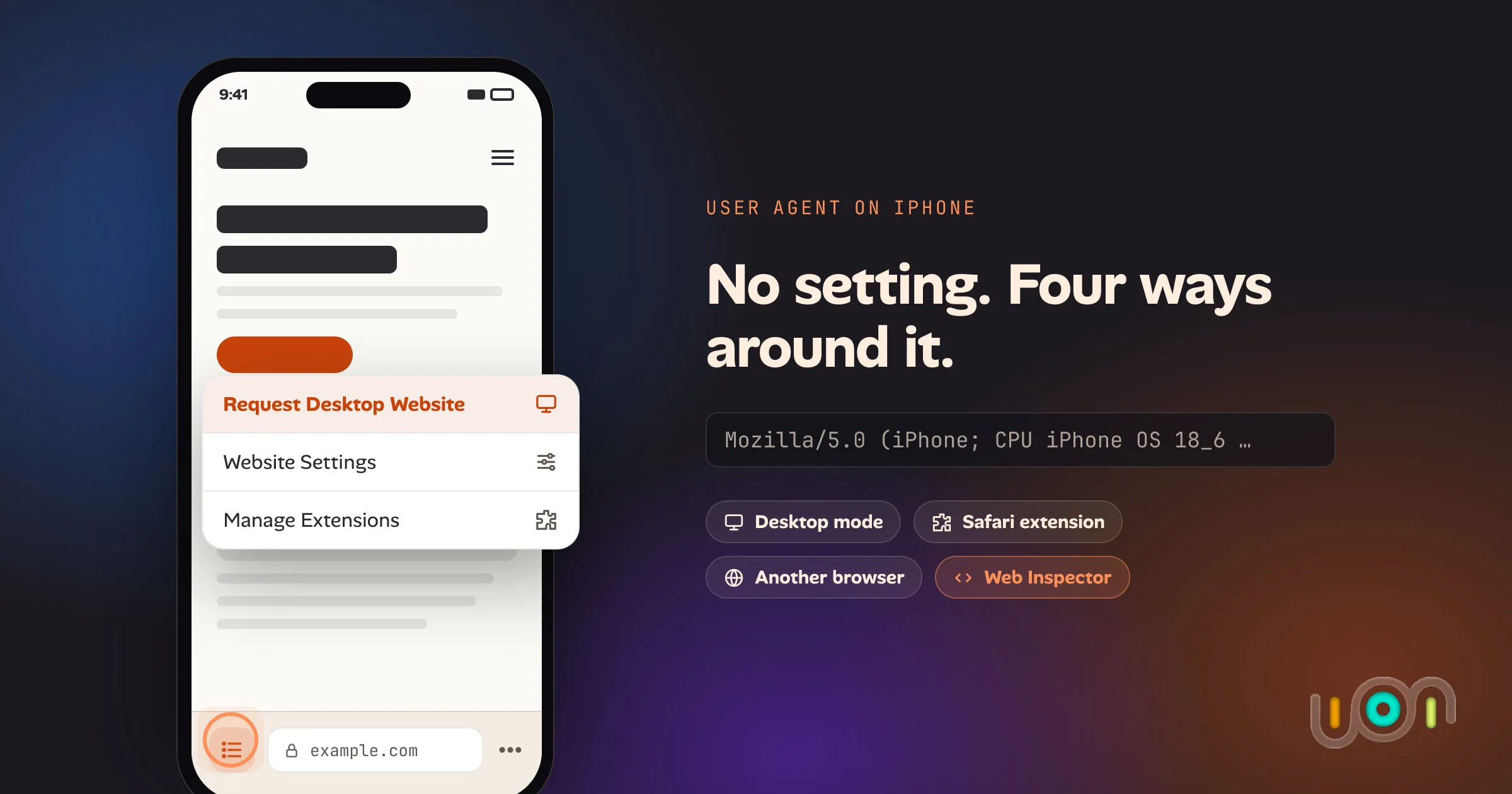
Not in Settings, and not in any of the big browsers. Safari, Chrome, Firefox and Edge on iPhone don’t let you type in a user agent. The only built-in choice is Request Desktop Website, which swaps your iPhone’s user agent for a Mac’s and nothing else.
You can still send a custom user agent from an iPhone. There are four ways, and each one has a catch.
The short answer
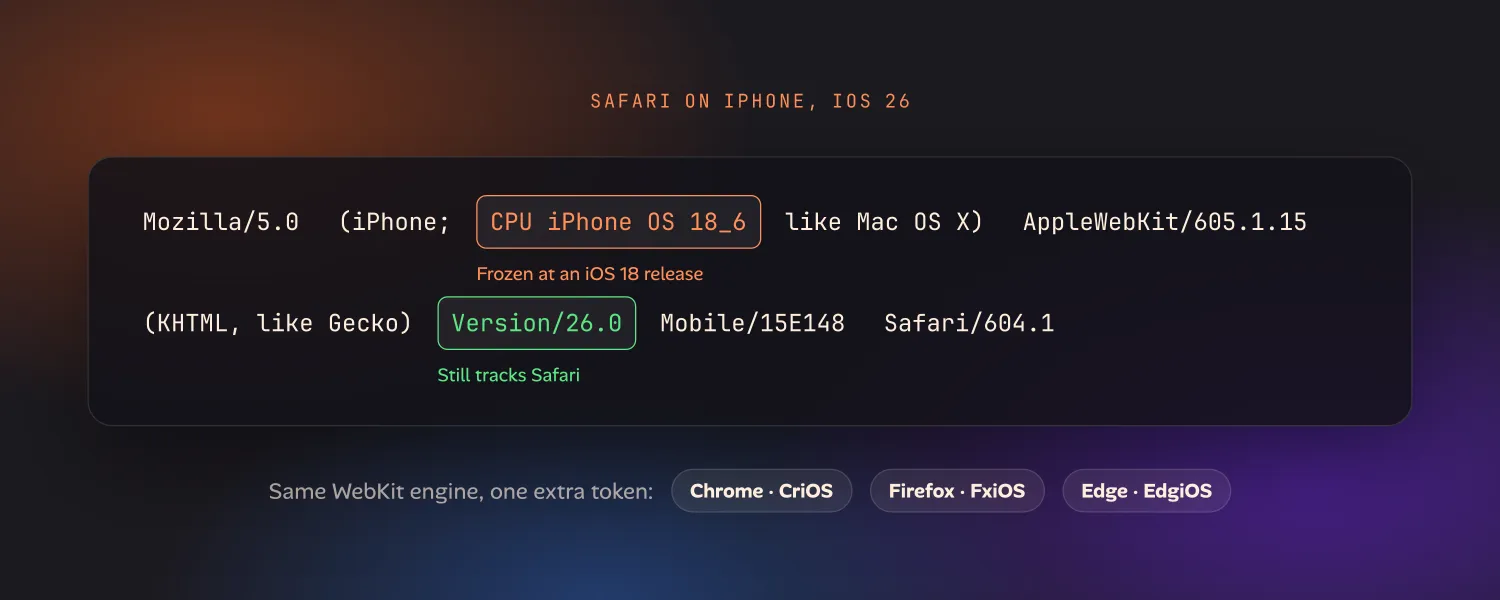
| Method | What you can send | Needs | Catch |
|---|---|---|---|
| Request Desktop Website (Safari, Chrome, Firefox) | A desktop user agent only | Nothing | You can’t choose the string, and the layout width changes too |
| A Safari extension that switches the user agent | Presets or any string, per site | An extension from the App Store | Only applies where you’ve given the extension access. Scripts may still see the real browser |
| A browser with a user agent setting, such as iCab Mobile | Presets or any string | A different browser app | You’re no longer testing in Safari itself |
| Web Inspector from a Mac | Any string | A Mac and a cable | Resets when you close Web Inspector or unplug |
If you just want a site’s full version, the first row is enough. If you’re testing how your own site responds to a particular user agent, read on.
What your iPhone sends by default
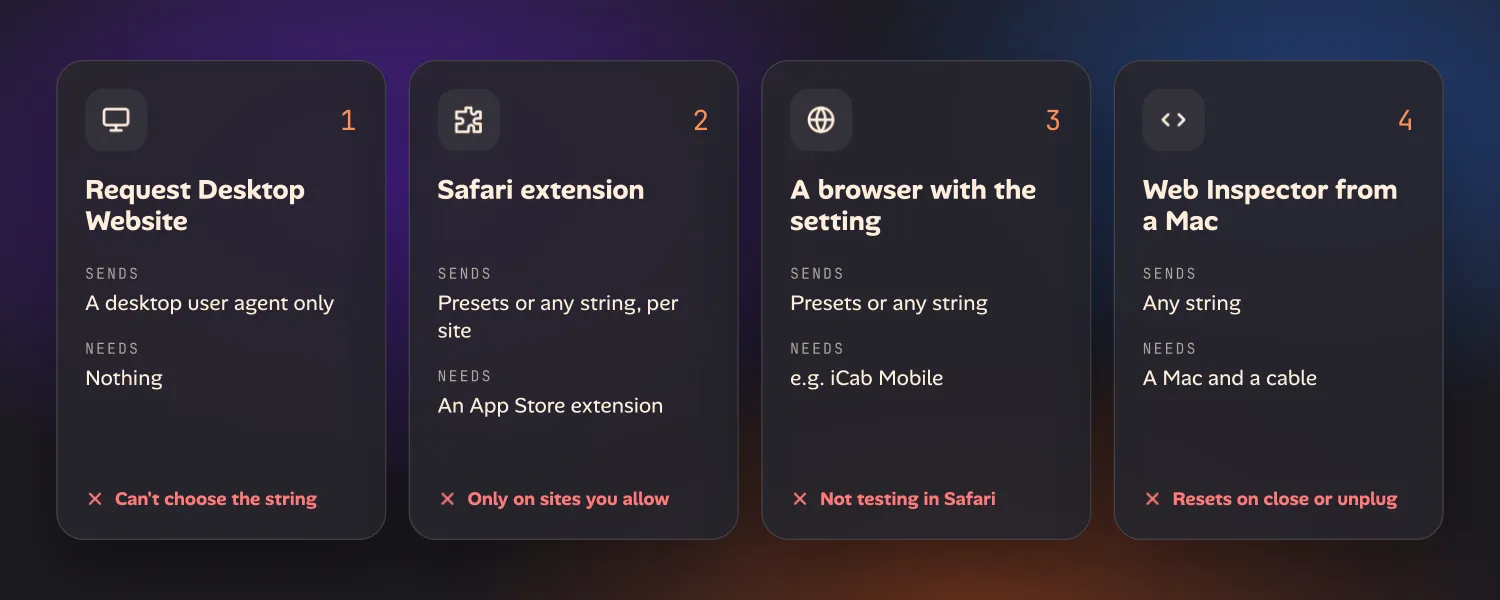
Safari on an iPhone running iOS 26 sends something like this:
Mozilla/5.0 (iPhone; CPU iPhone OS 18_6 like Mac OS X) AppleWebKit/605.1.15 (KHTML, like Gecko) Version/26.0 Mobile/15E148 Safari/604.1The OS number isn’t a typo. From iOS 26, Safari freezes the iOS version in its
user agent at an iOS 18 release, so the string stops tracking the real system
version. The Safari version (Version/26.0) still changes.
Chrome, Firefox and Edge on iPhone all use Apple’s WebKit engine, so their user
agents look almost the same. Chrome adds CriOS, Firefox adds FxiOS and Edge
adds EdgiOS. Websites can’t tell much more apart than that.
1. Request the desktop version
This is built in, and it’s the answer most people are after. How to view the desktop version of a site covers it for every browser, Android included.
- Safari on iOS 26: tap the page menu button at the left of the address bar, tap ⋯, then Request Desktop Website.
- Safari on iOS 15 to 18: tap aA in the address bar, then Request Desktop Website.
- Chrome: tap ⋯, then Request Desktop Site.
- Firefox: open the menu and tap Request Desktop Site.
The page reloads with a Mac user agent, so the site thinks you’re on Safari for Mac. To keep it on for every site, go to Settings → Apps → Safari and turn on Request Desktop Website. To keep it for one site only, look for Website Settings in the same page menu.
What you can’t do is pick the string. You get a desktop user agent or a mobile one. The layout width changes as well, so this doesn’t isolate the user agent from everything else.
2. Use a Safari extension
Safari on iPhone supports web extensions, and extensions can rewrite the
User-Agent header on requests to sites you allow. Several on the App Store do
this. Two examples I checked while writing this:
- Unagent (free): preset user agents, your own string, and separate settings per site. It needs iOS 18 or later.
- User Agent Switcher for Safari (paid): presets, custom strings, per-site rules matched by domain, URL prefix or regex, and iCloud sync. It needs iOS 17 or later.
Setup is the same for any Safari extension:
- Install the app and open it once.
- Go to Settings → Apps → Safari → Extensions, turn the extension on, and allow it on the websites you want to change. You can also do this in Safari under the page menu → Manage Extensions.
- Pick a user agent in the extension’s popup or in its app, then reload the page.
This is the closest thing to a real user agent setting in Safari on iPhone, and it sticks between visits. Keep three things in mind:
- Access matters. An extension can only change requests to sites you’ve allowed it on. If nothing changes, check its website permissions first.
- Scripts may still see Safari. Rewriting the request header changes what
the server receives. Whether
navigator.userAgentin the page’s JavaScript changes too depends on the extension. Check both if your site sniffs in scripts. - The engine is still WebKit. As Unagent’s own listing says, sites can detect the real browser in other ways. A Chrome user agent doesn’t make Safari behave like Chrome.
3. Use a browser that has the setting
A few iPhone browsers have a user agent option in their own settings. iCab Mobile is the longest-running example. Its Browser ID setting lets you pick from common desktop and mobile browsers, or enter your own.
It’s the easiest option if you want a user agent that stays set without setting up an extension. The catch is that you’re testing in a different app. It’s still WebKit, but you won’t see Safari’s own features, like its toolbar, Reader, extensions and autofill. For a check that has to happen in Safari, use one of the other options.
4. Override it from a Mac with Web Inspector
If you have a Mac, Safari’s Web Inspector can set any user agent on a page open on your iPhone. It’s the most precise way to do it.
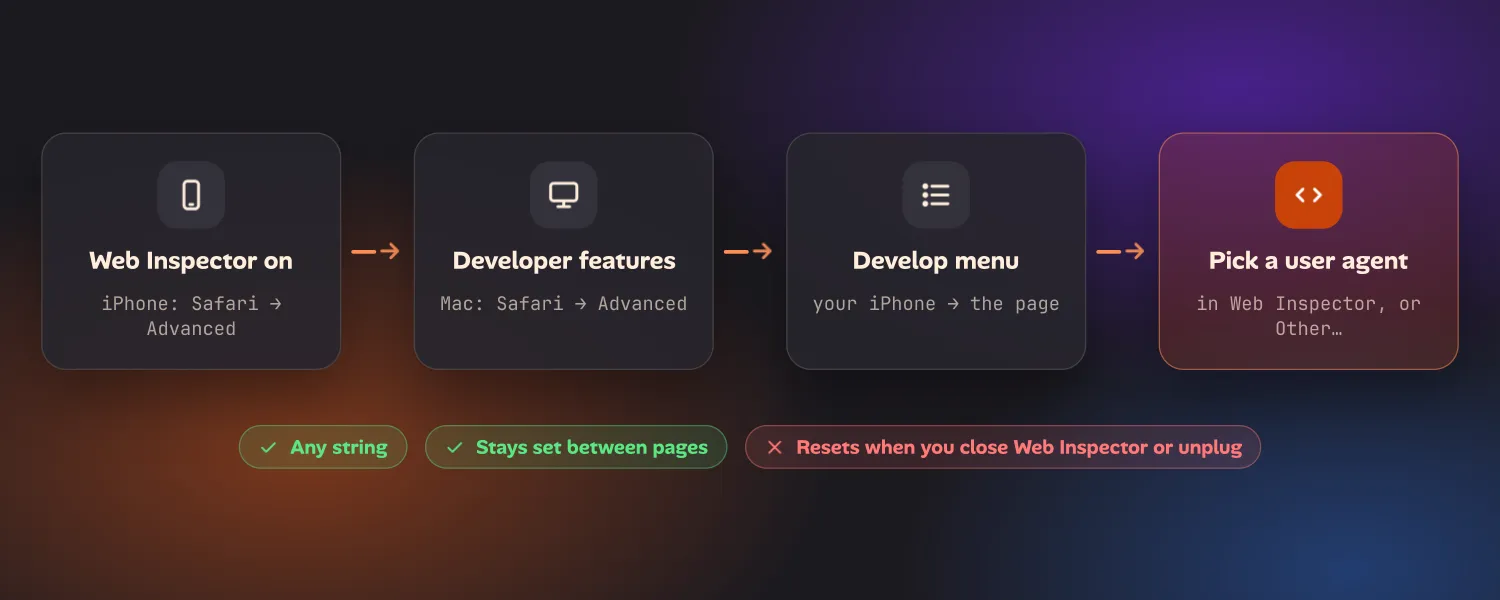
- On the iPhone, go to Settings → Apps → Safari → Advanced and turn on Web Inspector.
- On the Mac, open Safari → Settings → Advanced and turn on Show features for web developers.
- Connect the iPhone with a cable, tap Trust if it asks, and open the page in Safari on the iPhone.
- On the Mac, choose Develop → your iPhone’s name → the page.
- In the Web Inspector window, open the device settings menu and pick a user agent, or choose Other… to type one in.
The page on the iPhone reloads with the new user agent, and it stays set while you move between pages. Choose a user agent from the Web Inspector window, not from the Mac’s Develop menu. The Develop menu’s user agent setting changes the Mac’s own tabs, not the phone.
The catch is that the setting doesn’t last. When you close Web Inspector or unplug the phone, it goes back to the default. It also means you need the Mac beside you each time.
Which one to use
- You want a site’s full version: Request Desktop Website. Nothing to install.
- A site blocks Safari or your iPhone: a Safari extension, set for that site only.
- You’re testing your own site’s user agent handling at your desk: Web Inspector. It’s exact and it shows you the network requests too.
- You’re testing it away from your desk, again and again: a Safari extension, or a browser with the setting built in.
Desktop browsers still handle this best. Chrome, Firefox and Safari on Mac all
let you set any user agent in a few clicks: Chrome in DevTools under Network
conditions, Safari under Develop → User Agent, and Firefox in about:config.
Their catch is that the setting doesn’t last. Chrome resets it when DevTools
closes, Safari applies it to one tab, and Firefox’s applies to every site at once.
Keeping a user agent per project
The options above are all set per browser or per site. None of them remembers that your staging site should load as an iPad and a client’s site as a desktop Chrome.
That’s why we gave each project its own user agent setting in Ion, the iPhone and iPad app we’re building for testing your own sites from your phone. Each project has a Custom User-Agent field in its settings. Leave it blank and the user agent follows the device you pick (Laptop, iPad or iPhone). Fill it in and every page in that project uses your string until you clear it. Ion is in early access. If this is a problem you run into, see Ion for developers.
FAQ
Can you change the user agent in Safari on iPhone?
Not in Safari’s settings. The built-in option is Request Desktop Website, which sends a Mac user agent. For any other string, use a Safari extension that switches the user agent, or Web Inspector from a Mac.
Does Chrome on iPhone let you change the user agent?
No. Chrome on iPhone only offers Request Desktop Site, plus a Default Site View setting under Settings → Content Settings. It has no field for a custom string, and it doesn’t support extensions.
Does “Request Desktop Website” change the user agent?
Yes. Safari sends a Mac Safari user agent instead of the iPhone one, and it lays the page out at a wider width. You can’t choose which desktop user agent it sends.
Is there a user agent switcher for iPhone?
Yes, as Safari extensions from the App Store, such as Unagent and User Agent Switcher for Safari. You turn them on in Settings → Apps → Safari → Extensions and allow them on the sites you want to change.
Why does my iPhone’s user agent say iOS 18?
From iOS 26, Safari freezes the iOS version in its user agent at an iOS 18 release. That’s a privacy change, not an out-of-date phone. Use feature detection instead of the user agent to tell iOS versions apart.