How to be logged in to two accounts on the same site on iPhone
Testing an admin and a normal user, or two tenants, on the same site on an iPhone. What actually keeps the sessions apart, what only fakes it, and where each option breaks.
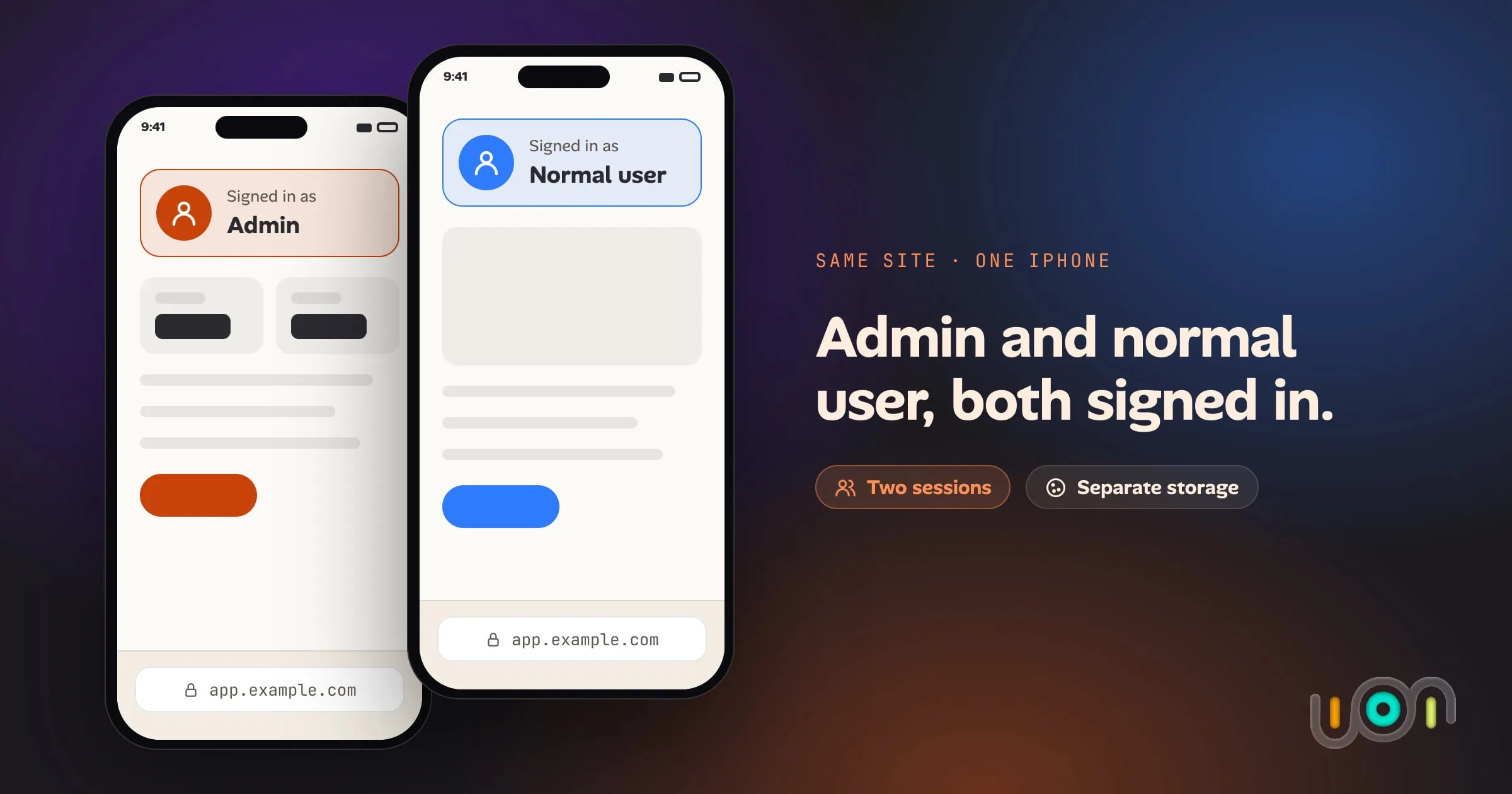
The question is simple: two accounts, one website, one iPhone, both sessions alive at the same time. The honest answer is that iOS Safari gives you exactly one way to do this properly, it is new, and everything else on the list is a workaround with a catch worth knowing before you rely on it.
Why this is harder than it sounds
A browser keeps you signed in with a cookie (or, increasingly, localStorage and
IndexedDB) scoped to one storage container per browser profile. Sign in to
Account B in the same tab as Account A and you have not opened a second session —
you have replaced the first one. Desktop browsers solved this years ago with
separate profile windows. Phones held out longer, because a phone’s whole design
assumes one app window and one identity at a time.
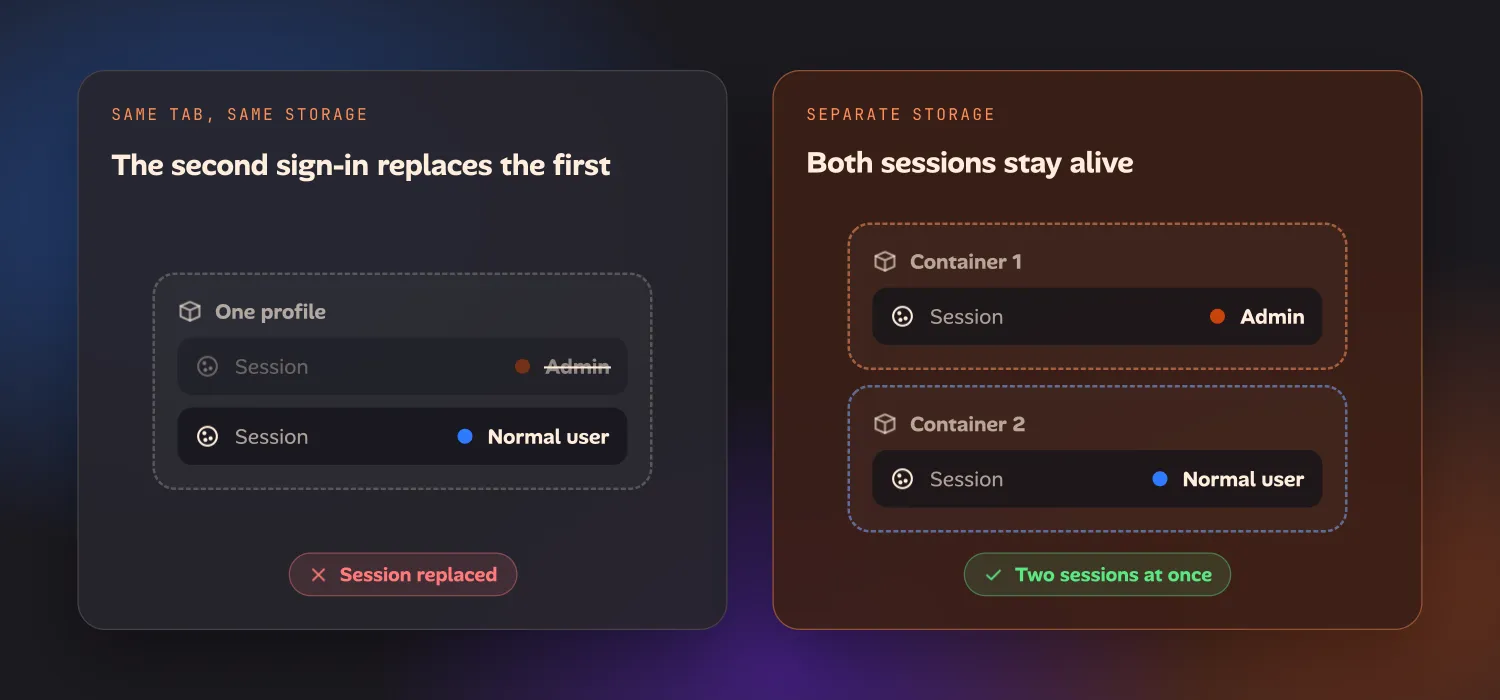
If you only need this occasionally — checking how a page looks logged out, or grabbing one screenshot as a different user — a Private tab is the fastest fix. If you need both sessions alive at once, for real testing, keep reading.
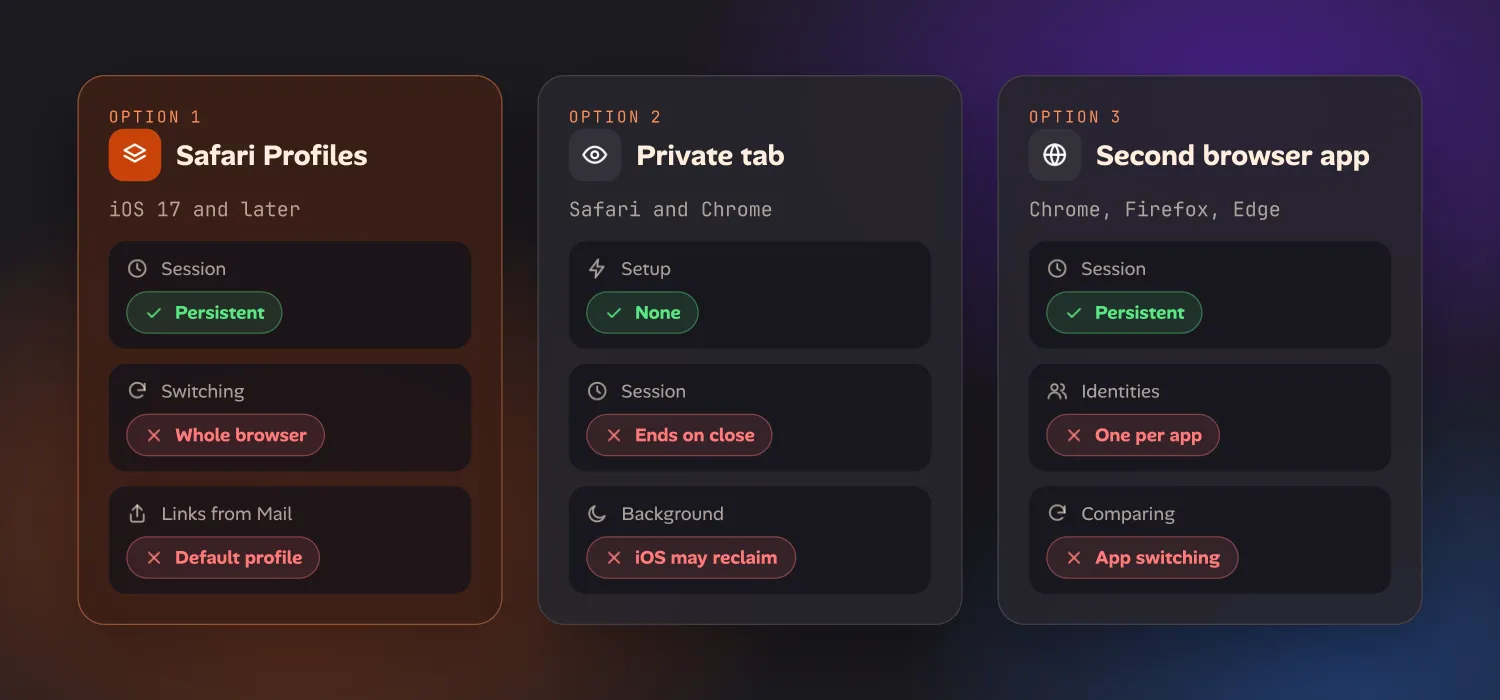
Option 1: Safari Profiles (iOS 17 and later)
This is the real fix, and it shipped further back than a lot of people realize.
Set one up: Settings → Safari → Profiles → New Profile. Give it a name, an
icon color, and optionally its own favorites, extensions, and Tab Group. Each
profile gets its own cookies, localStorage, browsing history, and sign-ins,
completely separate from your default profile. The
full Safari Profiles walkthrough also covers Focus
filters and per-profile extensions.
Switch between them: in Safari, tap the Tabs button (bottom right, the overlapping-squares icon), tap the small down-arrow near the address bar, then tap Profile, and pick the one you want. The tab bar’s color changes to match, so you can tell at a glance which identity you’re in.
The catch: switching a profile switches the whole browser, not one site. If you’re logged into Account A as your default and Account B in a second profile, you now have two Safari windows to manage, and a link tapped from Mail or Slack always opens in your default profile — not whichever one you were just using. For a quick side-by-side of “what does the admin see,” you’ll be tapping back and forth rather than glancing between two panes.
Option 2: A Private Browsing tab
Safari and Chrome on iOS both offer a Private tab that runs on its own storage, separate from your normal session. It’s the fastest way to get a second identity signed in without setting anything up first.
The catch: it’s temporary by design. Close the tab, or let iOS reclaim memory in the background — which it does more aggressively than most people expect — and the session is gone. It’s fine for a five-minute check, and not something to build a test pass around.
Option 3: A second browser app
Sign in to Account A in Safari and Account B in Chrome, Firefox, or Edge. Each app has entirely separate storage, so both sessions stay alive independently.
The catch: this caps out at two identities, or however many browser apps you’re willing to install and keep updated, and hopping between apps to compare behavior is slower than switching tabs or windows.
What about Chrome and Firefox specifically?
Two features get suggested here that solve a narrower problem than they sound like they do.
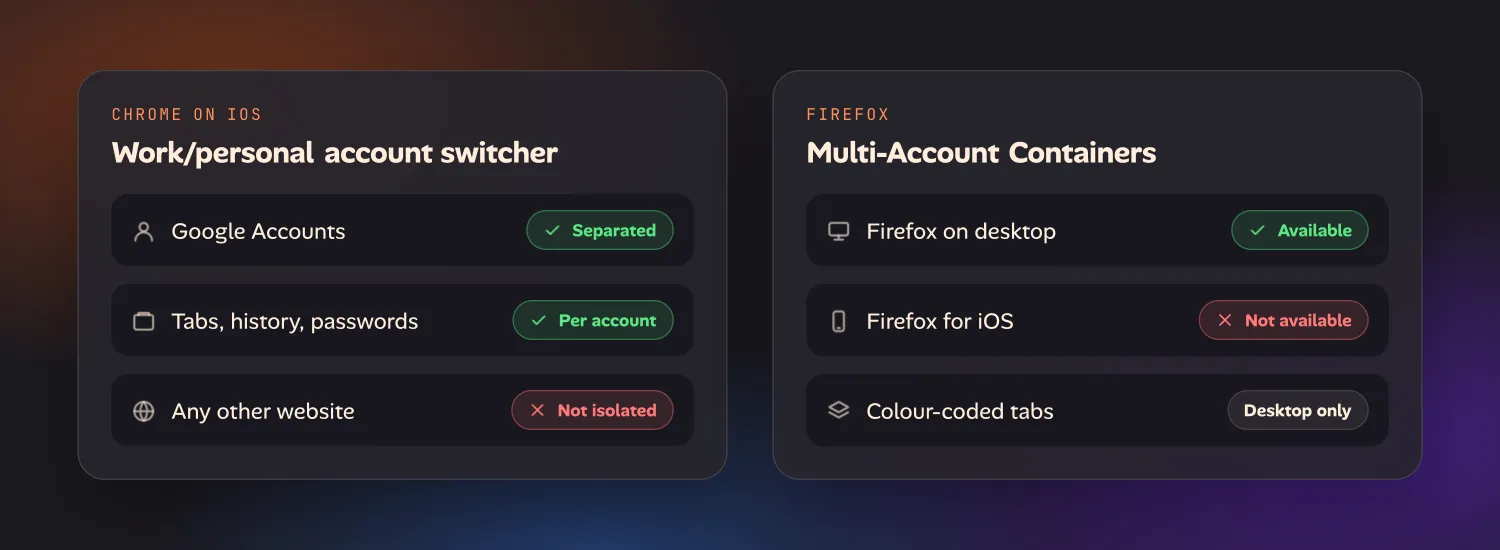
Chrome’s account switcher now lets you flip between a work and a personal Google Account — separate tabs, history, and passwords for each — without signing all the way out. That’s a real improvement, but it’s scoped to Google Accounts inside Chrome’s own sign-in system. It doesn’t give an arbitrary third-party site two isolated sessions the way a profile or a container does.
Firefox’s Multi-Account Containers, which color-code tabs by identity and are the standard answer to this problem on desktop, remain a desktop-only feature. Firefox for iOS doesn’t have containers, so this option isn’t available on a phone at all — worth knowing before you go looking for it in Settings.
The comparison
| Software | Platform | How | Catch |
|---|---|---|---|
| Safari | iOS 17+ | Profiles: Settings → Safari → Profiles, then switch via Tabs → Profile | Switches the whole browser, not one site; external links ignore the current profile |
| Safari, Chrome | iOS | Private Browsing tab | Session ends when the tab closes |
| Any browser | iOS | A second browser app | Two identities at most, one app switch per check |
| Chrome | iOS | Work/personal Google Account switcher | Only separates Google Accounts, not arbitrary sites |
| Firefox | Desktop only | Multi-Account Containers | Not available on Firefox for iOS |
Why this comes up
The recurring case is testing, not personal use: “what does the admin see” against “what does a normal user see,” or two customer tenants that need checking side by side. On a laptop that’s two profile windows, tiled. On a phone, until Safari Profiles arrived, it wasn’t really possible at all, and even Profiles asks you to manage the whole browser rather than just the one thing you’re testing.
That’s the gap Ion is built around: every project gets its own isolated website data store, so you can be signed in to the same site as different users in different projects without touching a browser setting. Deleting the project deletes that data. It’s in early access now — the workarounds above are the honest answer for anyone on stock iOS today.