How to change your user agent in Chrome, Safari and Firefox
Step-by-step ways to set a custom user agent in Chrome, Edge, Safari and Firefox on desktop, how long each override lasts, and what it doesn't change.
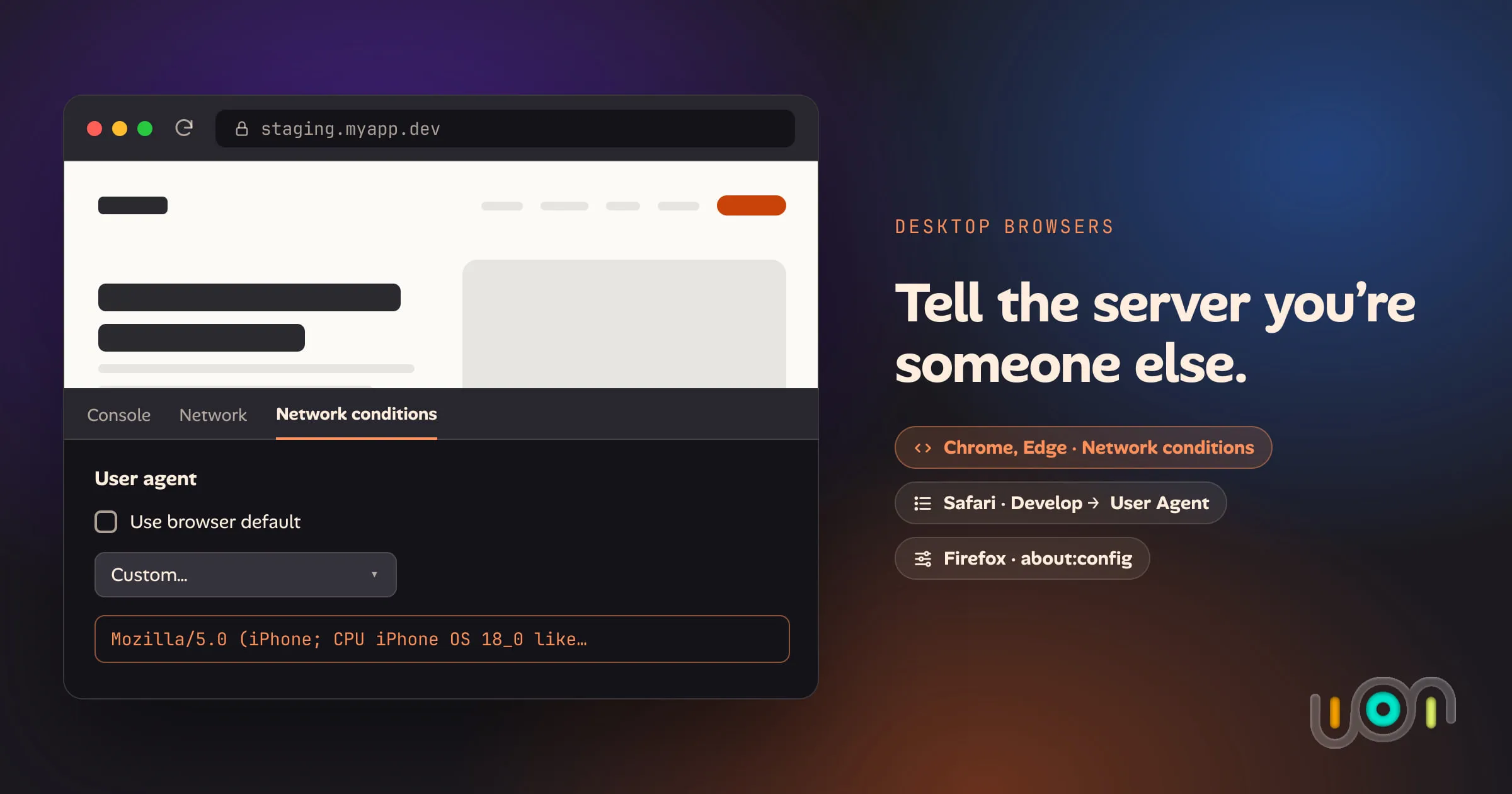
Every desktop browser lets you change its user agent, the string that tells a server which browser and operating system is asking for the page. You’d do it to check what a site sends to an iPhone, to reproduce a bug a user reported from another browser, or to test your own user-agent detection.
All three major browsers do this well. The differences are in where the option lives, and in how long the change lasts: until you close DevTools, until you close the tab, or until you change it back.
The short answer
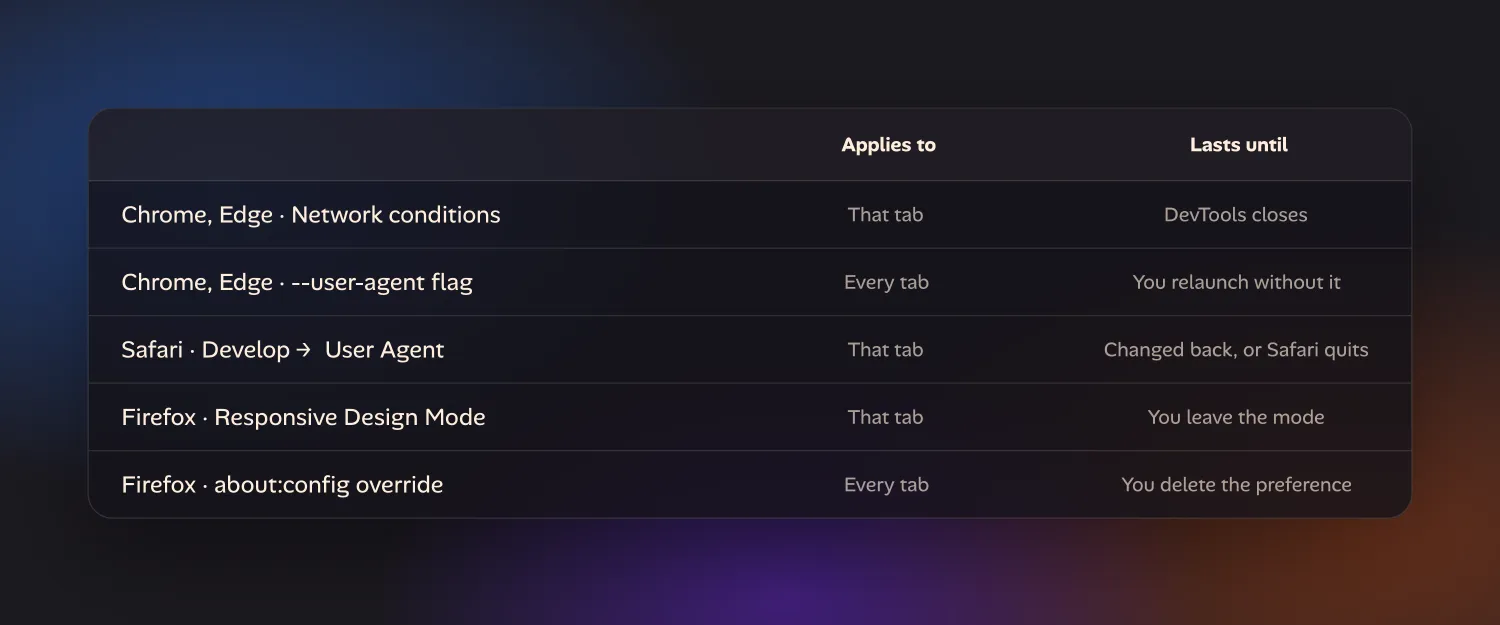
| Browser | Where | How long it lasts |
|---|---|---|
| Chrome, Edge | DevTools → ⋮ → More tools → Network conditions → untick Use browser default | That tab, while DevTools is open |
| Chrome, Edge | Launch with --user-agent="…" |
Every tab, until you relaunch without it |
| Safari (Mac) | Develop → User Agent | That tab, until you change it back or quit Safari |
| Firefox | Responsive Design Mode, custom device | That tab, while Responsive Design Mode is on |
| Firefox | about:config → general.useragent.override |
Every tab, until you delete the preference |
For a quick one-off check, use the DevTools route in Chrome or the Develop menu in Safari. Only reach for the permanent options if you really do want every page to see the fake string.
Chrome
Chrome’s user-agent override lives in the Network conditions panel of DevTools.
- Open DevTools: ⌥⌘I on a Mac, Ctrl+Shift+I on Windows and Linux.
- Open Network conditions. Use whichever route is quickest for you:
- DevTools’ ⋮ menu → More tools → Network conditions.
- The Command Menu (⌘⇧P or Ctrl+Shift+P), then type “Network conditions”.
- In the Network panel, the More network conditions button next to the throttling menu.
- Under User agent, untick Use browser default.
- Pick a browser from the list, or choose Custom… and paste your own string.
- Reload the page.
The override applies to the tab DevTools is attached to, and only while DevTools stays open. Close DevTools and the next request goes out with Chrome’s real user agent again.
Client hints. Modern Chrome also identifies itself through User-Agent Client
Hints: the Sec-CH-UA request headers and navigator.userAgentData in
JavaScript. A site that reads those instead of the old string will still see
Chrome. When you pick a preset from the list, Chrome shows a User agent client
hints section you can expand to edit the brands, platform and model, then click
Update and reload. Set these too if the site you’re testing uses them.
Device Mode does it too. Turning on the device toolbar (⌘⇧M or Ctrl+Shift+M with DevTools open) and picking a phone from the list also switches the user agent to match that device, along with the viewport size and touch input.
Every tab, with a launch flag
If you need the override to survive closing DevTools, start Chrome with the
--user-agent switch. On a Mac, quit Chrome completely first, then run:
open -a "Google Chrome" --args --user-agent="Mozilla/5.0 (iPhone; CPU iPhone OS 18_0 like Mac OS X) AppleWebKit/605.1.15 (KHTML, like Gecko) Version/18.0 Mobile/15E148 Safari/604.1"On Windows, add the same --user-agent="…" switch after the path to
chrome.exe in a shortcut. On Linux, pass it to google-chrome.
Every tab now sends that string until you quit and relaunch normally. If Chrome was already running, the flag is ignored, because the new launch just opens a window in the existing process.
Extensions
User-agent switcher extensions from the Chrome Web Store let you swap strings from a toolbar button and set rules per site. They’re convenient if you switch often. Remember what you’re granting, though: an extension that rewrites request headers on every site needs permission to read and change your data on every site.
Microsoft Edge
Edge uses the same DevTools as Chrome, so the steps above work unchanged: open
DevTools, open Network conditions, untick Use browser default, and reload.
The --user-agent launch flag works for msedge too.
Safari on a Mac
Safari keeps its user-agent switch in the Develop menu, so you don’t need to open Web Inspector.
- If there’s no Develop menu in the menu bar, open Safari → Settings → Advanced and turn on Show features for web developers. (Older versions call this Show Develop menu in menu bar.)
- Go to the tab you want to change.
- Choose Develop → User Agent, then pick a preset, such as Safari on iPhone or iPad, Chrome, Edge or Firefox.
- For any other string, choose Other… at the bottom of the list, paste it, and click OK.
Safari reloads the page with the new user agent. The change applies to that tab only, and Safari doesn’t keep it: quit Safari and the tab comes back with the default. To undo it sooner, choose Develop → User Agent → Default (Automatically Chosen).
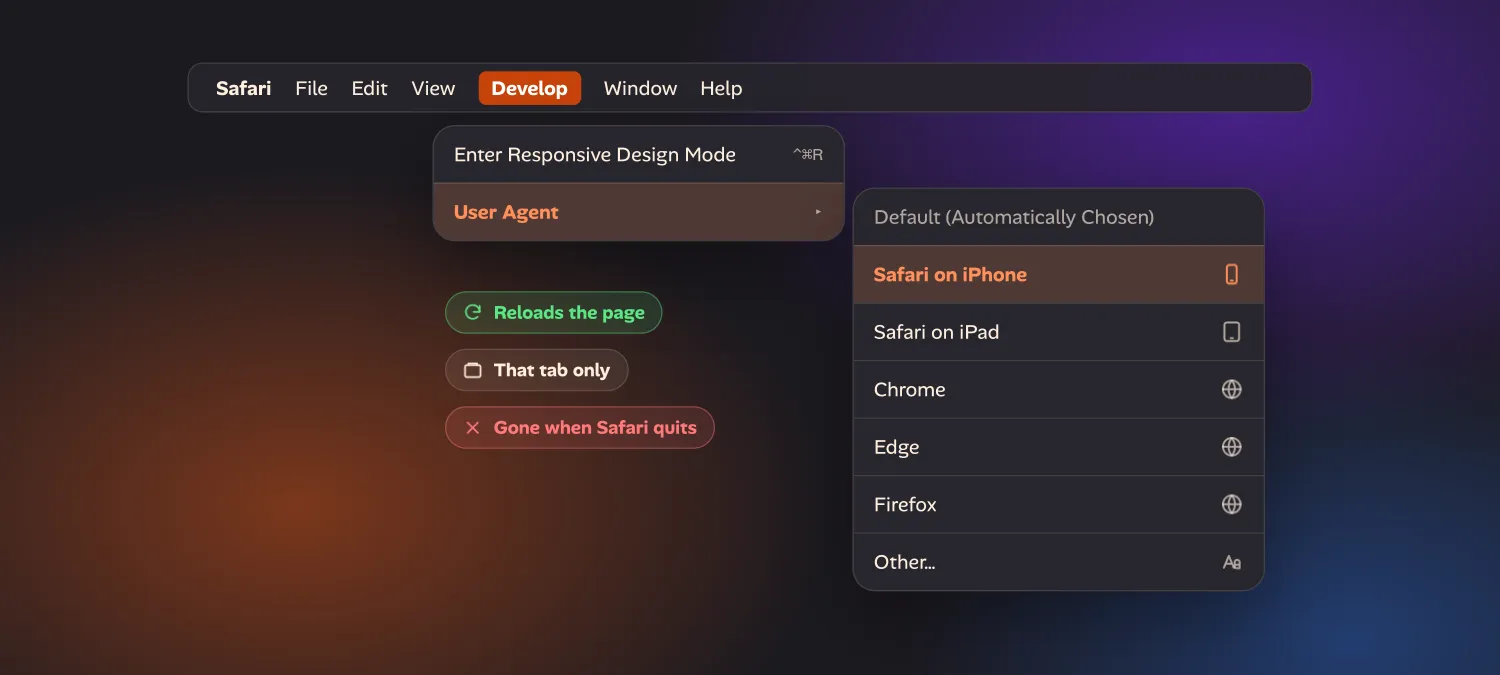
Responsive Design Mode (Develop → Enter Responsive Design Mode, or ⌃⌘R) also has a user-agent menu in its toolbar, so you can change the viewport size and the user agent at the same time.
Firefox
Firefox gives you a per-tab option in Responsive Design Mode and a global option
in about:config.
For one tab, in Responsive Design Mode
- Open Responsive Design Mode: ⌥⌘M on a Mac, Ctrl+Shift+M on Windows and Linux.
- Pick a device from the device menu at the top. Firefox switches the
User-Agentheader andnavigator.userAgentto that device’s browser, so picking an iPhone makes Firefox identify as Safari. - For your own string, open the device menu → Edit list → Add Custom Device, and fill in the User Agent String field. The custom device is saved for next time.
The toolbar’s settings menu has two options worth turning on: Show user agent, which displays the current string, and Reload when user agent is changed. Leave Responsive Design Mode and the tab goes back to Firefox’s own user agent.
Everywhere, in about:config
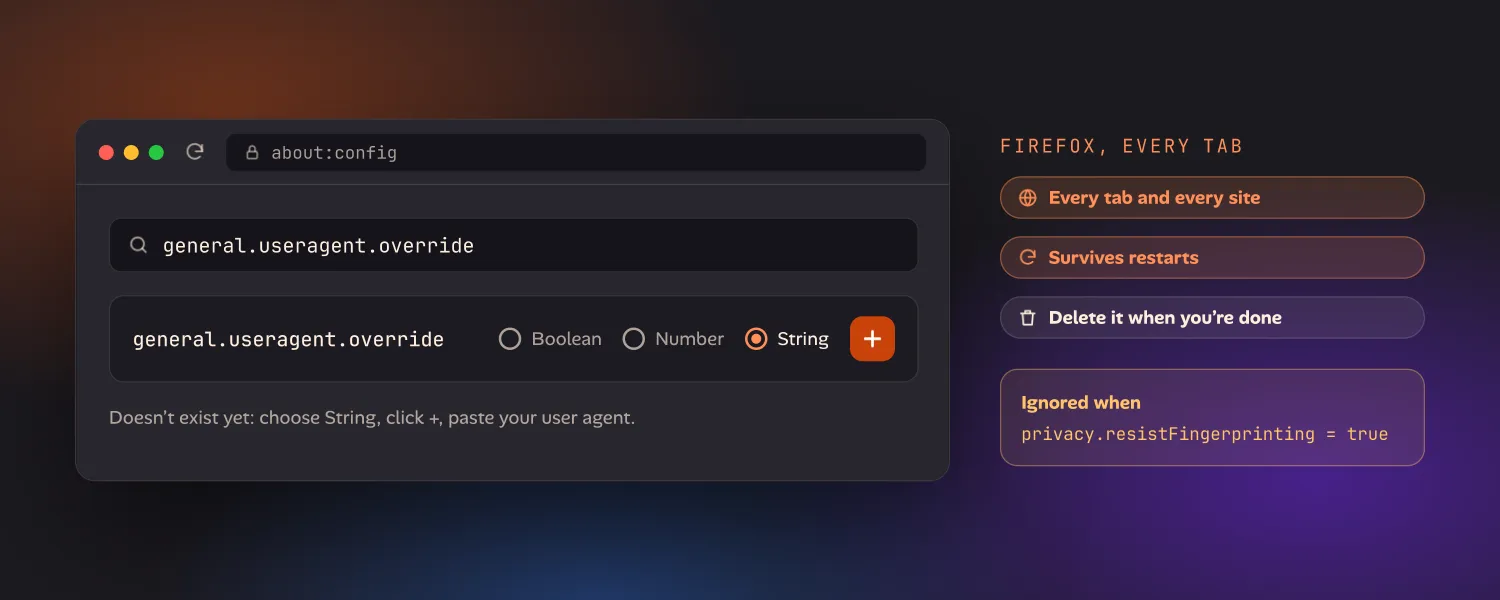
- Type
about:configin the address bar and accept the warning. - Search for
general.useragent.override. - It won’t exist yet. Choose String and click the + button to create it.
- Paste your user agent string and save.
This changes the user agent for every tab and every site, and it survives restarts. It’s easy to forget you’ve set it, so delete the preference (the bin icon next to it) as soon as you’re done.
How to check it worked
Don’t rely on the browser’s menu. Check what the page actually receives:
- In the DevTools console, run
navigator.userAgent. In Chrome, also runnavigator.userAgentDatato see the client hints. - In the Network panel, select the page request and look at the
User-Agentrequest header. - Or open any “what is my user agent” page, which echoes back the header it received.
If the header changed but the site still treats you as your real browser, it’s detecting something else, such as client hints, screen size, touch support or JavaScript features that only exist in one engine.
What changing the user agent doesn’t do
A user agent override changes a string, not the browser. Chrome pretending to be Safari still runs Chrome’s rendering engine and JavaScript engine, with Chrome’s bugs and Chrome’s CSS support. So it’s the right tool for testing what a server sends to a given browser, and the wrong tool for testing how that browser renders it. For rendering, you need the real browser, on the real device if you can.
It also doesn’t change the viewport. To see a phone layout, use Device Mode in Chrome or Responsive Design Mode in Safari and Firefox, which set the size and the user agent together.
What about phones?
On desktop you have all these options. On a phone you mostly don’t. Safari and
Chrome on iPhone, and Chrome on Android, offer a
Request Desktop Website or Desktop site toggle,
which swaps between the browser’s own mobile and desktop strings, but none of them
let you type a custom one. Firefox for Android Beta and Nightly allow
about:config; the regular release doesn’t. On an iPhone there are still
four ways to send a custom user agent, each with
a catch.
That gap is one we’re closing in Ion, the iPhone and iPad app we’re building to test your own projects from your phone. Each project in Ion has a Custom User-Agent setting, so a project can send whatever string you give it, while your other projects keep their defaults. Ion is in early access; see Ion for developers if that’s something you need.