Safari Profiles on iPhone: set up and switch
How to create a Safari profile on iPhone, switch between profiles, pick extensions per profile and switch automatically with Focus. Also covers what a profile keeps separate and where profiles fall short.
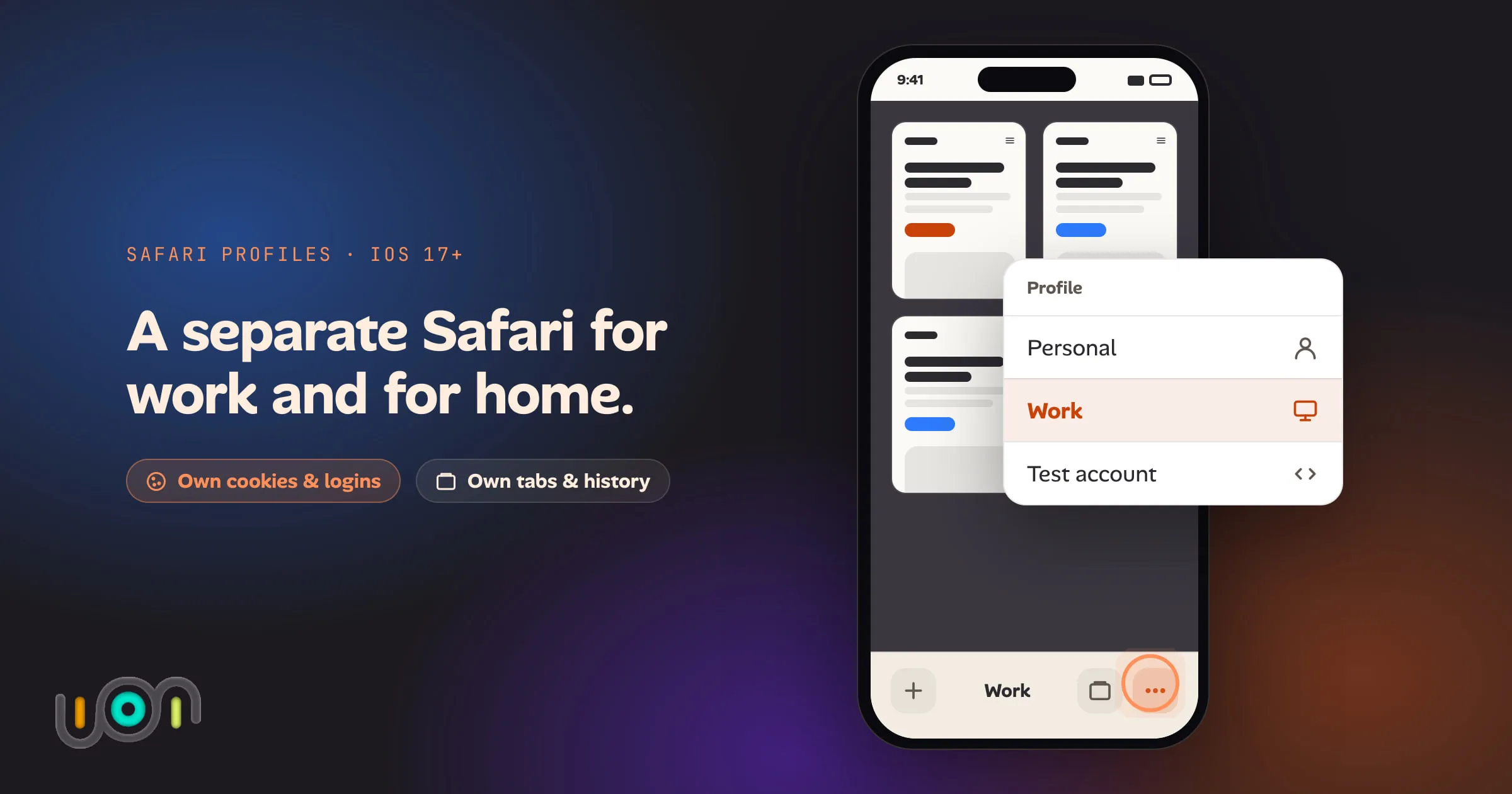
Safari Profiles give you more than one Safari on the same iPhone. Each profile has its own history, cookies, website data, extensions, Tab Groups and favorites. That lets you keep work separate from personal browsing. It also lets you stay signed in to the same site with two different accounts, one per profile.
Profiles have been on iPhone since iOS 17. The setup lives in the Settings app rather than in Safari, which is why many people never find it. The steps below match Apple’s iPhone User Guide as of September 2026 (iOS 27). The menus have moved between major versions before. On iOS 17, which predates the Apps list in Settings, Safari’s settings are at Settings → Safari instead.
What a profile keeps separate, and what it shares
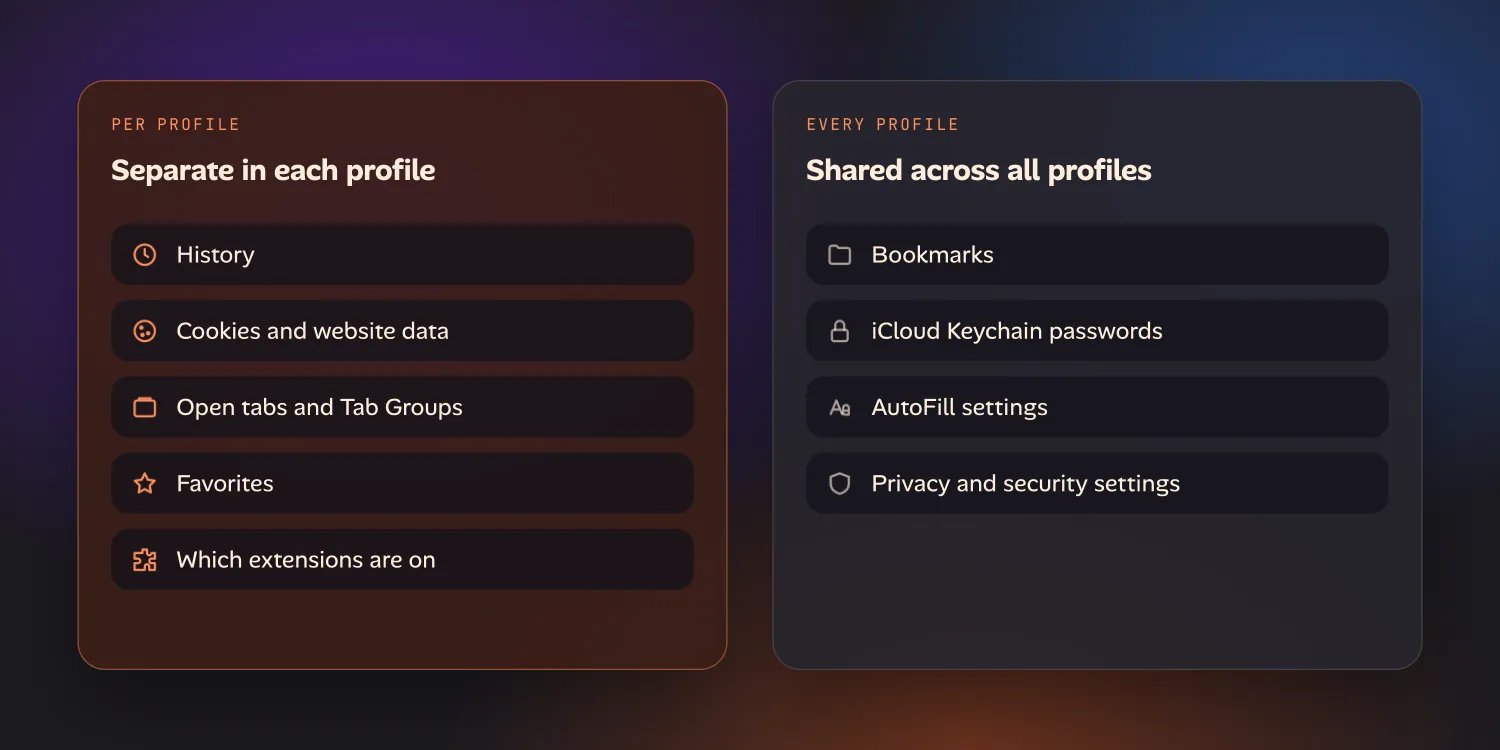
| Separate in each profile | Shared across all profiles |
|---|---|
| History | Bookmarks (every folder, from any profile) |
| Cookies and website data, so each profile has its own logins | Passwords saved in iCloud Keychain |
| Open tabs and Tab Groups | AutoFill, privacy and security settings |
| Favorites (you pick a bookmarks folder for each profile) | |
| Which extensions are turned on |
The separate cookies matter most in practice. A site you’re signed in to in your Personal profile sees you as signed out in your Work profile, so you can sign in there with a different account. Passwords are shared, though, so AutoFill offers every saved login for that site in every profile. Pick the right one.
Profiles also sync. A profile you create on your iPhone shows up in Safari settings on your iPad and Mac too, as long as they use the same Apple Account. Your open tabs don’t come along: each device keeps its own.
How to create a Safari profile on iPhone
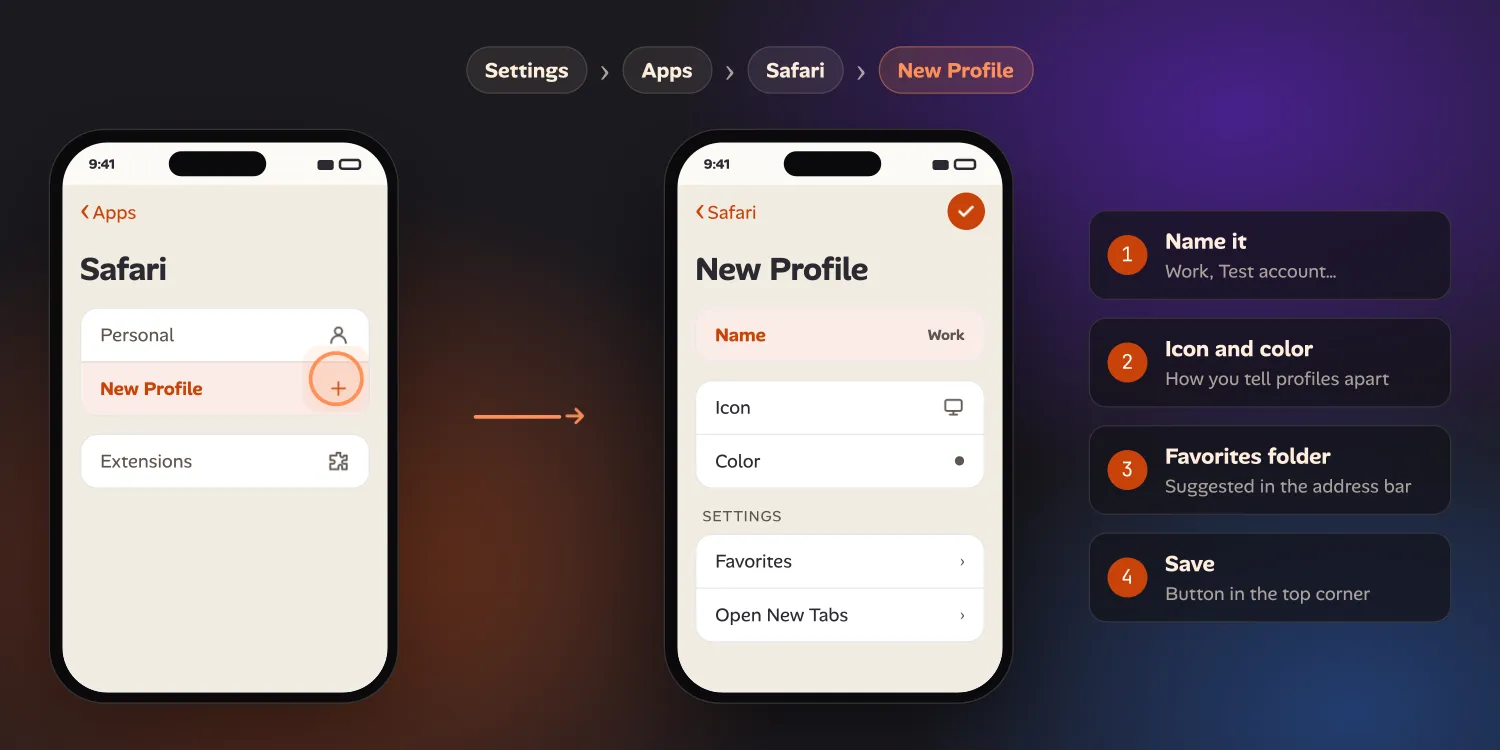
- Open the Settings app.
- Tap Apps, then Safari.
- Tap New Profile, then tap Name and type a name, for example “Work” or “Test account”.
- Choose an icon and a color. They are how you’ll tell profiles apart in Safari, so make them different.
- Under Settings, tap Favorites and choose a bookmarks folder. Safari suggests the bookmarks in that folder when you type in the address bar or open a new tab in this profile.
- Tap Open New Tabs and choose what a new tab shows.
- Tap the button in the top corner to save the profile.
All your profiles are listed in the same place. The browsing you did before creating one stays in your original, default profile.
How to switch Safari profiles on iPhone
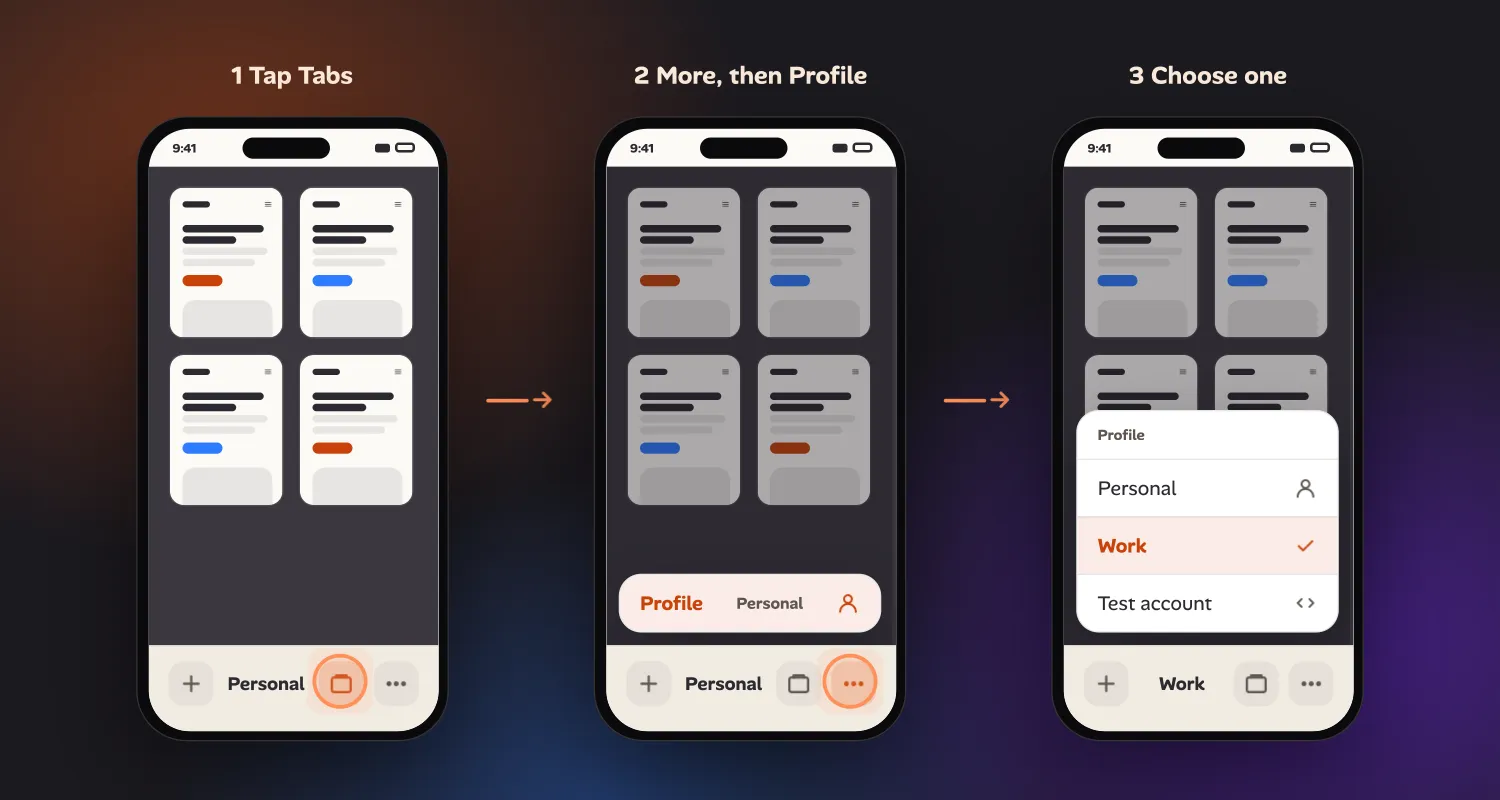
- Open Safari.
- Tap the Tabs button, then the More button (the three dots).
- Tap Profile, then choose the profile you want.
Safari swaps everything at once: the tabs and Tab Groups you see, the favorites on a new tab, and the cookies each page gets. Open the same menu to check which profile you’re in before you sign in to anything.
Only one profile is on screen at a time. You can’t keep a Work tab and a Personal tab open side by side on an iPhone. You switch back and forth, and each profile’s tabs are still there when you return.
Switch profiles automatically with Focus
If you already use Focus modes, a Focus can pick the profile for you:
- Open Settings and tap Focus, then the Focus you want (for example Work).
- Scroll to Focus Filters and tap Add Filter.
- Tap Safari, set the filter type to Profile, and choose the profile.
Turning on the Work Focus now switches Safari to your Work profile.
Choose which extensions run in each profile
Extensions are installed once and turned on for each profile separately:
- Open Settings, tap Apps, then Safari.
- Tap Extensions, then an extension.
- Under Allow Extension In, turn on the profiles it should run in.
This is useful when you want a content blocker or password manager in one profile but not in another.
Edit or delete a profile
To rename a profile or change its icon, color, favorites or new-tab page, go to Settings → Apps → Safari and tap the profile.
To delete one, tap the profile there, tap Delete Profile, then Delete. Apple’s guide says this erases the profile’s favorites, history and Tab Groups and closes its open tabs, and it can’t be undone. Your bookmarks and saved passwords stay, because every profile shares them.
Where Safari Profiles fall short
Profiles do what they are built for well: two or three long-lived sides of your life, each with its own tabs and logins. They get in the way when you need something finer-grained.
- You switch the whole browser, not a tab. Every change of identity is a trip through the Tabs menu, and you never see both side by side.
- Links from other apps don’t let you choose. A link you tap in Mail or Messages opens in Safari without asking which profile to use. On the Mac, Apple documents that such links open in the most recently used profile and gives you a per-site override. Apple’s iPhone guide describes no such override, so check the profile before you sign in from a link.
- They’re meant to last. Creating and deleting a profile takes several steps in Settings. That is fine for “Work” and “Personal”. It is tedious for “the admin account for this one test” when you need a clean identity for twenty minutes.
The other mobile options each cost something too. A Private tab starts with no cookies, but it forgets the login once you close it. A second browser app, such as Chrome or Firefox, gives you a second set of cookies, but each app is only one more identity. On desktop, Chrome and Edge profiles and Firefox’s Multi-Account Containers are more flexible. Containers keep identities apart per tab, but the extension isn’t available on Firefox for iOS or Android.
That last gap is the one we kept hitting while testing our own sites from a phone: checking “admin vs normal user”, or two tenants of the same app, without logging out and back in. In Ion, our in-progress workspace for building and testing sites and apps from a phone, each project gets its own cookies and storage. The identity follows the project, not the browser. Ion hasn’t launched yet. If you do this kind of testing on your phone, you can join the early-access list to hear when it does.
Frequently asked questions
Does Safari on iPhone have profiles?
Yes, since iOS 17. Create them in Settings → Apps → Safari → New Profile (on iOS 17, Settings → Safari → New Profile), and switch between them in Safari from the Tabs button → More → Profile.
Do Safari profiles keep cookies separate?
Yes. Each profile has its own cookies and website data, so you can be signed in to the same site with a different account in each profile. Saved passwords are shared across profiles.
Can I use two accounts on the same website on iPhone?
Yes. Sign in with one account in one Safari profile and the other account in a second profile, then switch profiles to move between them. For a one-off check, a Private tab also works, but it forgets the login when you close it.
Do Safari profiles sync to my Mac and iPad?
The profiles do. They appear on your other devices signed in to the same Apple Account. Each device keeps its own open tabs.
What happens to my bookmarks and passwords if I delete a profile?
They stay. Deleting a profile removes its favorites, history and Tab Groups and closes its tabs, but bookmarks and iCloud Keychain passwords are shared by every profile.